MoneyBook starts empty, so it can match your family exactly. This guide walks you through setting it up, then covers every feature: budgets, bills, splits, sharing, Siri, widgets, Apple Watch and Mac. The screenshots use a sample family, the Carters.
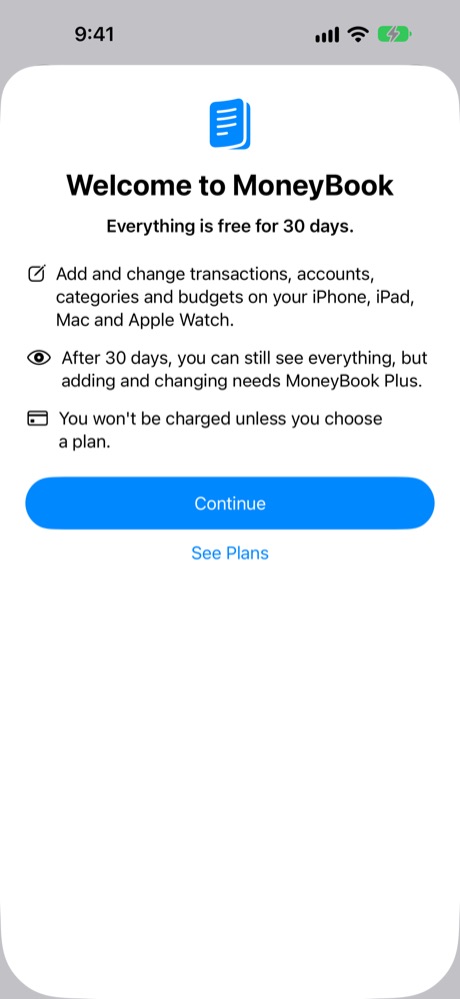
The first time you open MoneyBook, it welcomes you and explains your free month. Then you'll see empty screens. That's expected: MoneyBook never connects to your bank, so you add your own accounts and categories.
Welcome. Everything is free for 30 days.
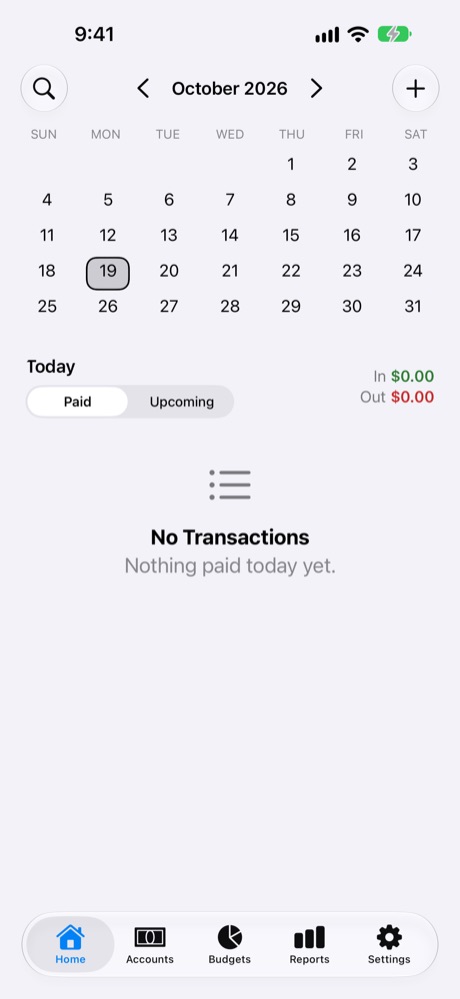
Home before any transactions.
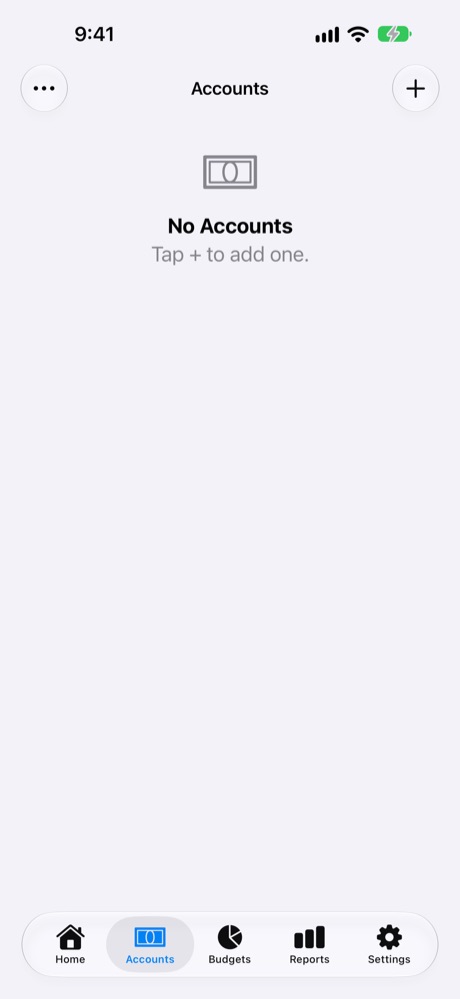
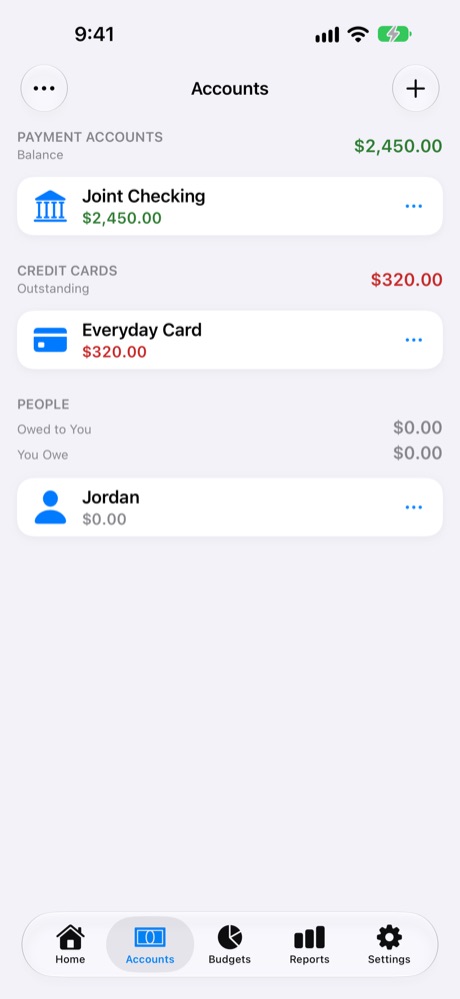
Accounts: tap + to add one.
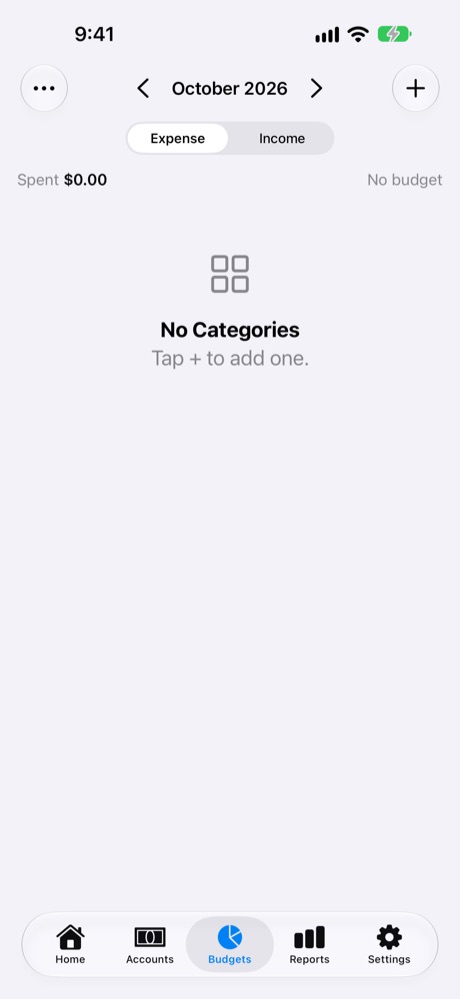
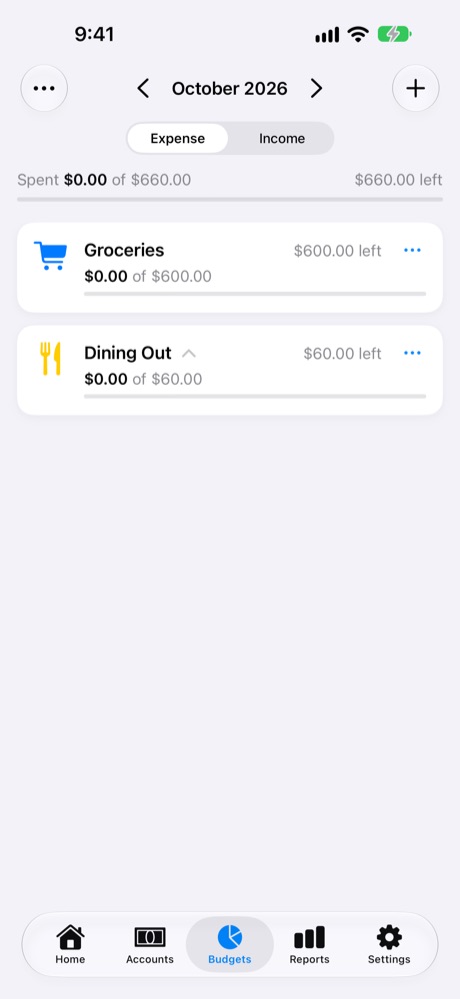
Budgets: tap + to add a category.
Tap Continue to start, or See Plans to look at MoneyBook Plus. You won't be charged unless you choose a plan.
The five tabs
Tab
What it's for
Home
A calendar of your money. See what was paid on any day or month, what's coming up, and overdue bills. The + button adds a transaction, and the magnifying glass opens Search.
Accounts
Everything you own and owe: bank accounts, cards, assets, loans and the people who owe you, with their balances.
Budgets
Your expense and income categories, each with its budget and progress for the period.
Reports
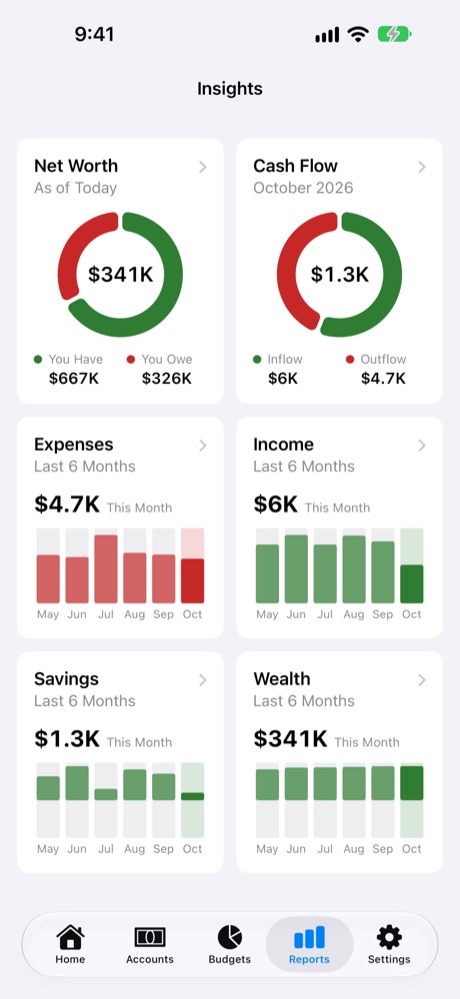
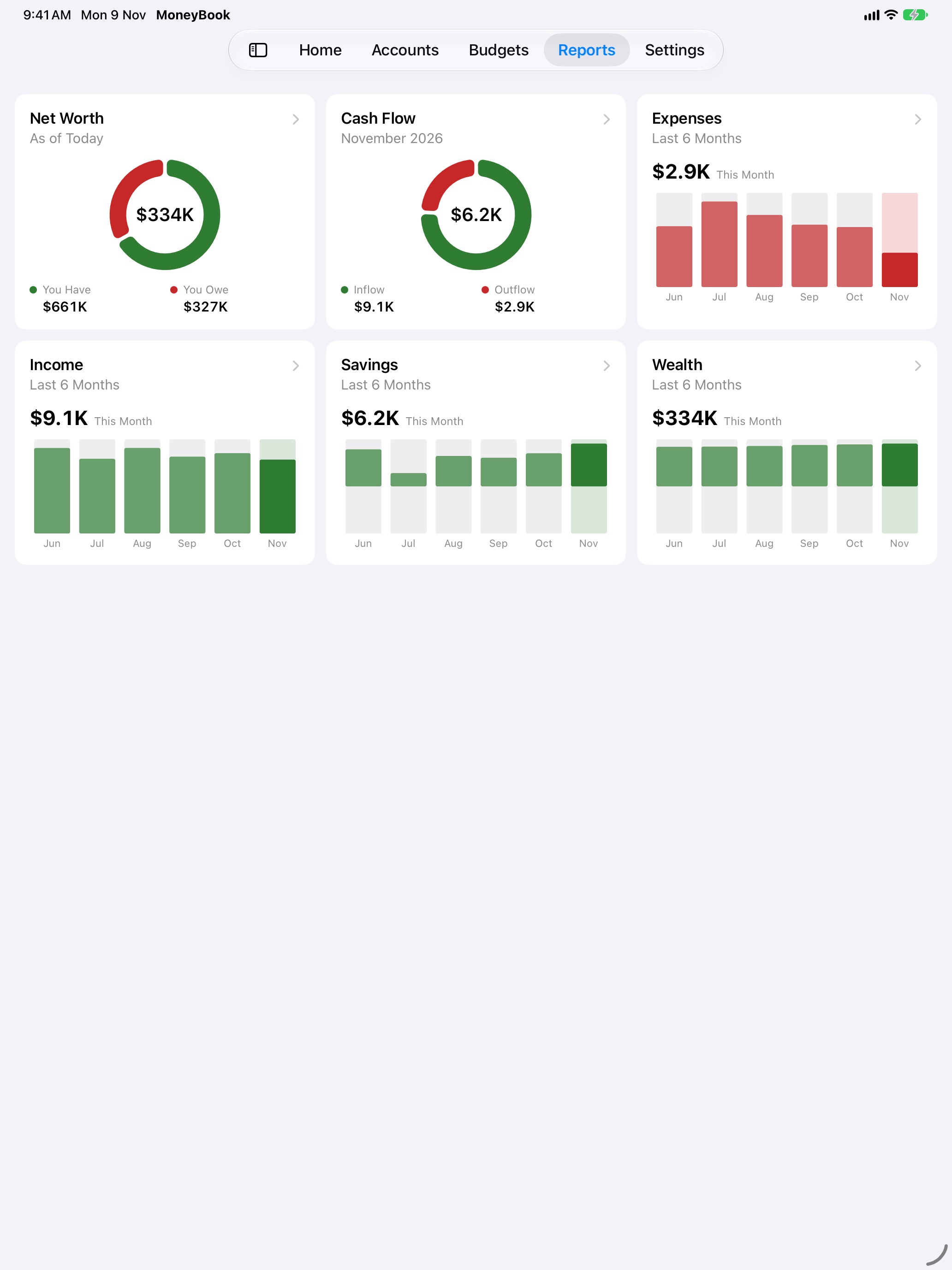
Six insight cards: Net Worth, Cash Flow, Expenses, Income, Savings and Wealth. Tap one for the full report.
Settings
Profiles, sharing, reminders, Siri shortcuts, MoneyBook Plus and support.
What you needAn iPhone or iPad with iOS or iPadOS 26 or later, a Mac with macOS 26 or later, or an Apple Watch with watchOS 26 or later. A few extras, like dragging to reorder and Private Cloud Compute for Siri, need version 27.
The quickest setupAdd the two or three accounts you use most and five or six categories, like Groceries, Rent, Dining Out and Salary. You can add more any time, including straight from the transaction form.
iCloud and syncing
MoneyBook uses your own iCloud account to keep your iPhone, iPad, Mac and Apple Watch in step. There's no MoneyBook account to sign up for, and no password to remember.
Sign in to iCloud with the same Apple Account on each device (Settings → your name). That's all syncing needs.
Changes sync on their own. There's no sync button. Anything you add shows up on your other devices, and for the people you share with, within moments.
Works offline. Everything is saved on your device first. If you're offline, changes sync as soon as you're back online.
Sharing needs iCloud too. To invite family or join their profile, both of you need to be signed in to iCloud.
If something's wrong, Settings tells you
A message appears at the top of MoneyBook's Settings when iCloud needs attention:
Message
What to do
Not Signed In to iCloud
Your changes are kept on this device. Sign in to iCloud in the Settings app and they'll sync.
iCloud Storage Is Full
Changes stay on this device until you free up space or upgrade your iCloud storage.
iCloud Is Unavailable
Usually temporary. Your changes are saved and sync when iCloud is back.
Owner's storage is full
In a profile someone shared with you, their iCloud is full. Your changes sync once they free up space.
Data from Another iCloud Account
This device's MoneyBook data came from a different iCloud account. Choose Remove Data to use the current account's data. The other account's iCloud keeps its copy.
Your data stays yoursEverything lives on your devices and in your iCloud. We can't see it. Read the privacy policy for details.
Your profile and currency
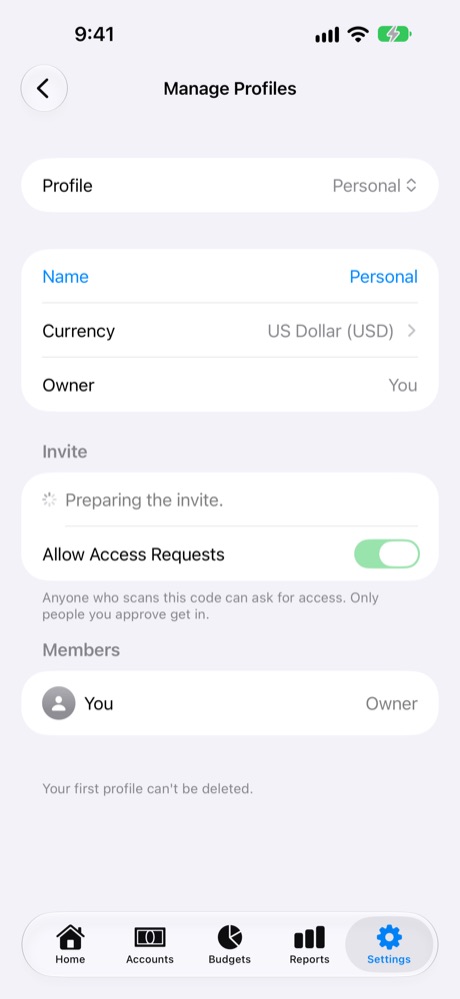
A profile is one money book: its own accounts, categories, budgets and transactions. You start with one called "Personal". Rename it and pick its currency before you add anything.
Go to Settings → Manage Profiles.
Tap Name to rename it, for example "Family".
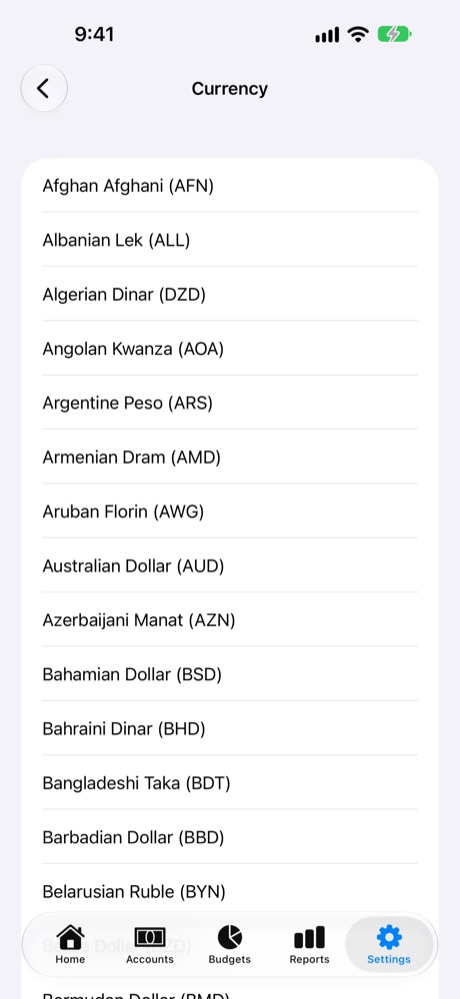
Tap Currency and choose yours. Every amount in this profile is shown in it, on every device and for everyone you share with.
Manage Profiles: name, currency and sharing.
Currency: every world currency.
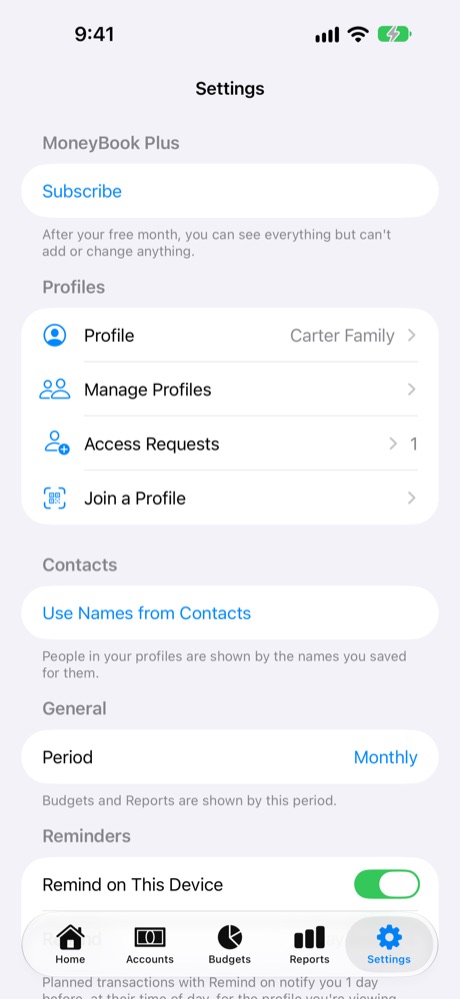
Settings: your profile and the budget period.
Choose your budget period
In Settings → General → Period, choose whether budgets and reports work daily, weekly, monthly, quarterly or yearly. Most families use Monthly. New budgets use this period too.
Need separate books?You can have more profiles, like a side business or your parents' finances, each with its own currency. See More profiles.
Accounts
Accounts are where money lives: your bank account, cash, credit cards, your home and loans, and even the friends who owe you money. Every transaction moves money in or out of an account.
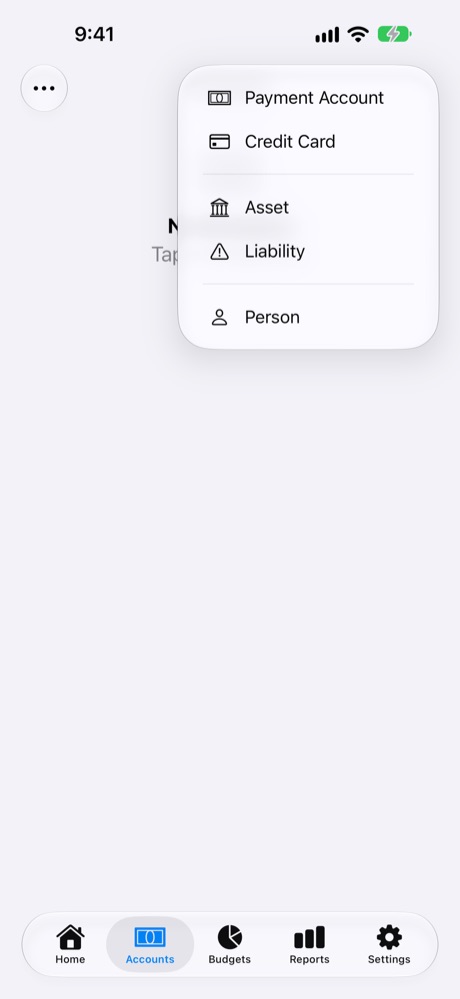
The five kinds of account
Kind
Use it for
Its balance means
Payment Account
Bank accounts, savings, cash, digital wallets
How much is in it now
Credit Card
Credit and charge cards
How much you owe on the card (Outstanding)
Asset
Your home, car, investments, a college fund
What it's worth
Liability
Mortgage, car loan, student loan
How much is still due
Person
Friends and family you lend to or borrow from
What they owe you, or what you owe them
Add an account
Go to Accounts and tap +.
Choose the kind of account.
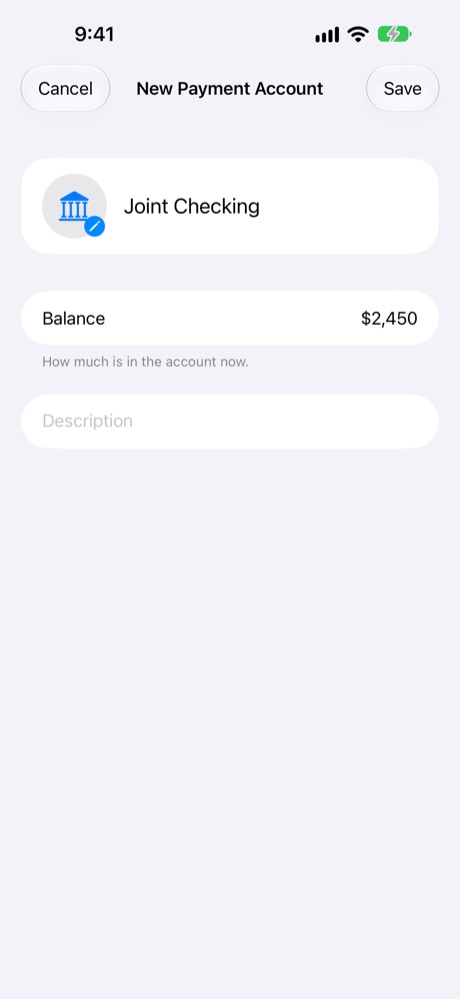
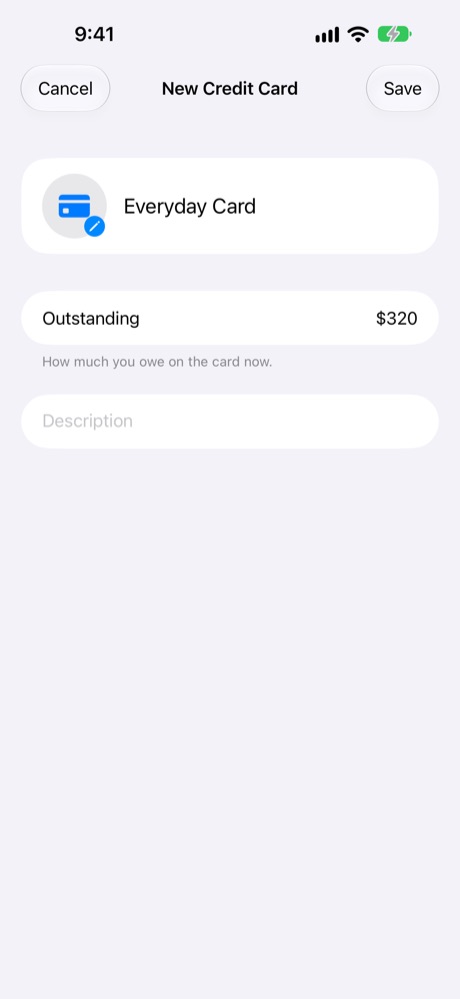
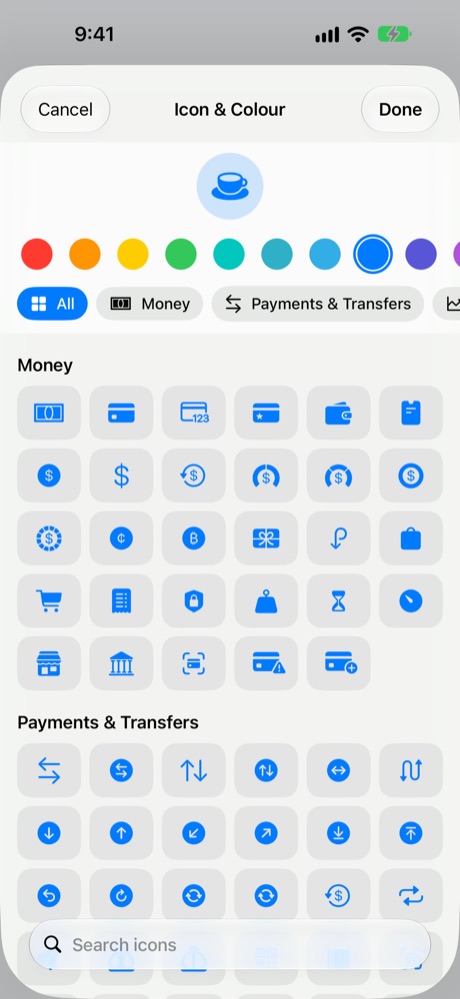
Type a name. MoneyBook suggests an icon from the name, like a bank for "Joint Checking" or a card for "Everyday Card". Tap the icon to choose another icon and colour.
Enter the balance as it is today, using the built-in calculator keypad.
Add a description if you like, then tap Save.
+ asks which kind.
Payment account with today's balance.
Credit card: what you owe now.
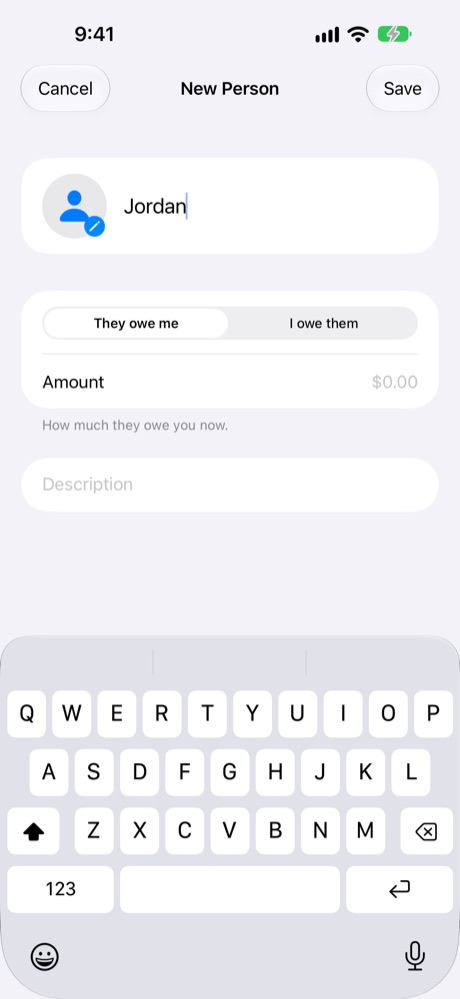
Person: they owe me, or I owe them.
Icon & Colour: thousands of symbols.
Your first accounts, grouped by kind.
Start from todayYou don't need to enter your history. Give each account its balance as of today and start logging from now on.
Your accounts screen
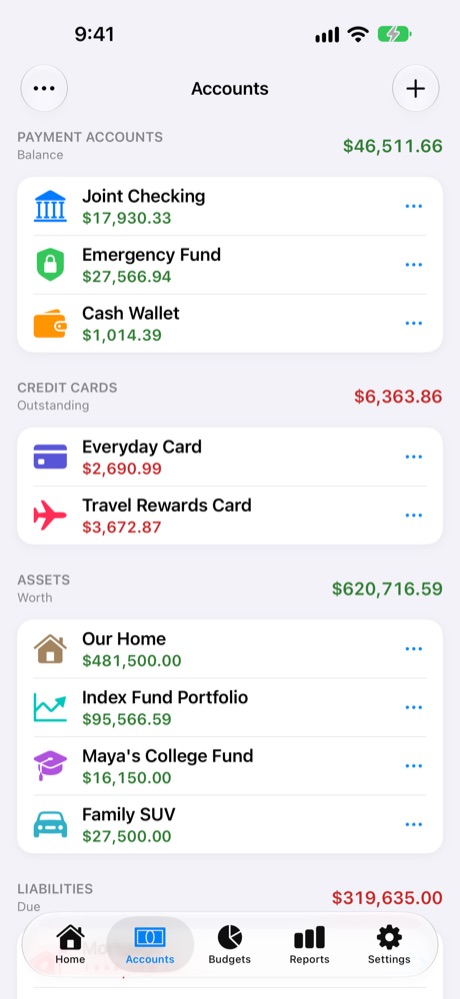
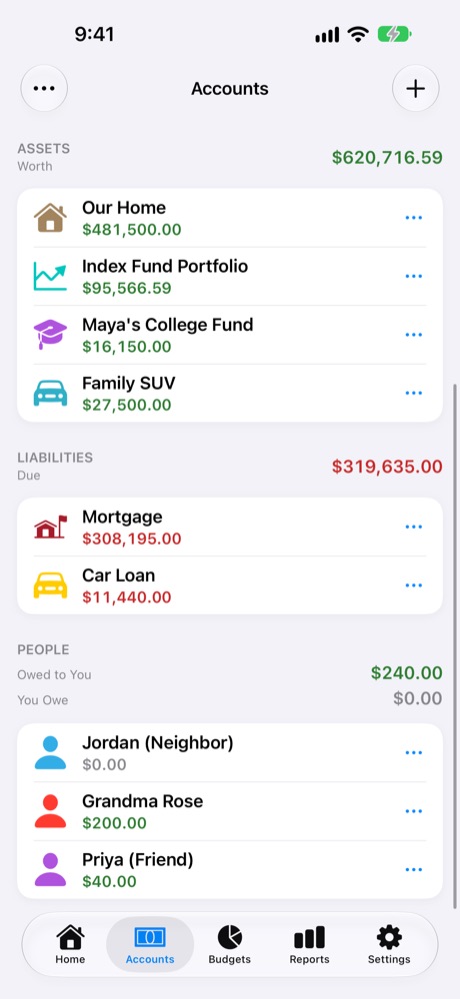
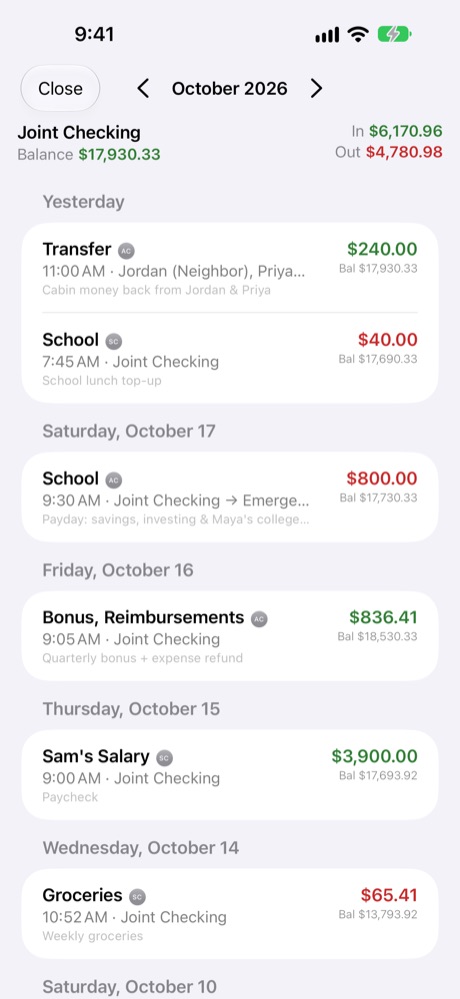
Accounts are grouped by kind, with a total for each group: Balance for payment accounts, Outstanding for cards, Worth for assets, Due for liabilities, and Owed to You or You Owe for people. Tap an account to see its history, newest first, with the running balance after each transaction. Use the arrows at the top to move between months.
Accounts with totals by kind.
Assets, liabilities and people.
History with running balances.
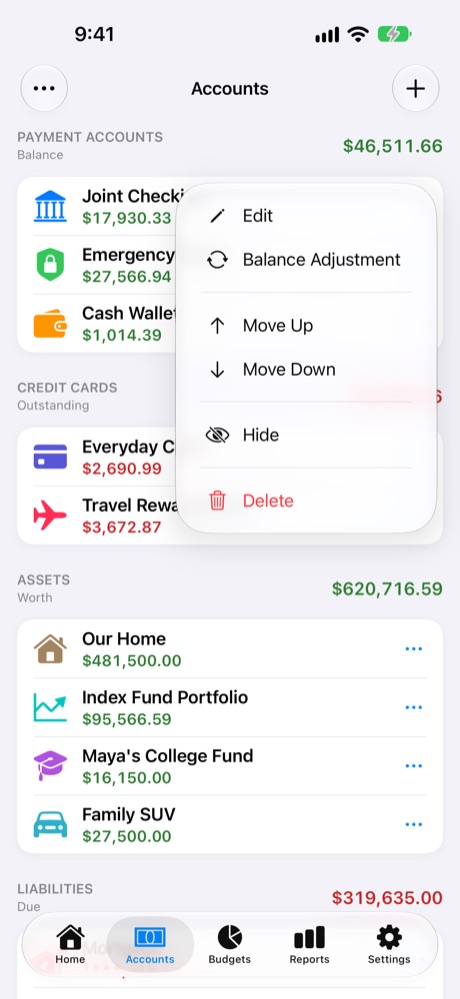
The ••• menu on each account.
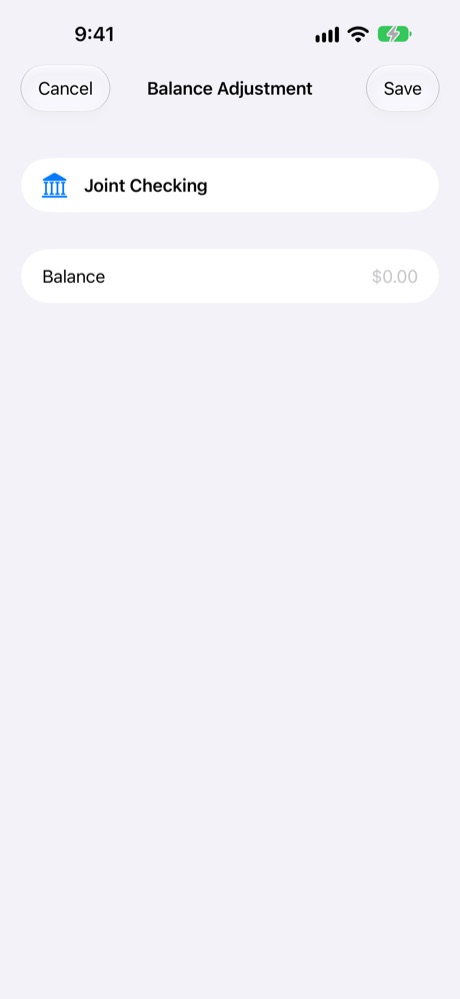
Balance Adjustment.
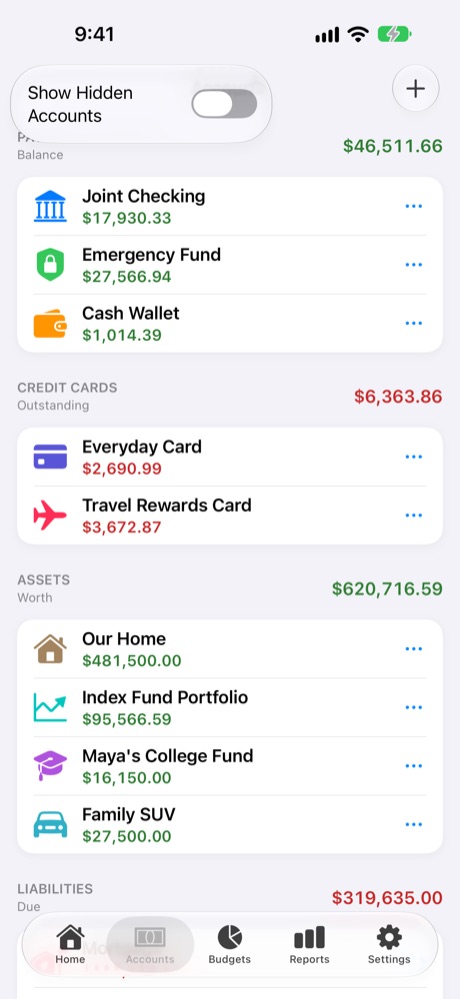
Show Hidden Accounts.
The account menu
Tap ••• on an account, or touch and hold it:
Option
What it does
Edit
Rename the account, or change its icon, colour or description. (Its kind can't be changed. Make a new account instead.)
Balance Adjustment
Enter the real balance when MoneyBook's has drifted from your bank's. The difference is recorded as an adjustment, so your history stays intact.
Move Up / Move Down
Change its place within its group. On iOS, iPadOS and macOS 27 you can also drag accounts.
Hide / Unhide
Take an account you no longer use out of the list and the pickers, keeping its history (see below).
Delete
Remove the account and all its transactions, after asking you to confirm.
Tapping the account itself opens its history. The ••• at the top left of the Accounts tab holds Show Hidden Accounts. With View Only access to a shared profile, the menu isn't shown.
Deleting can't be undoneDeleting an account permanently deletes every transaction in it, for everyone in the profile. Hide it instead if you might want its history.
Hiding an account
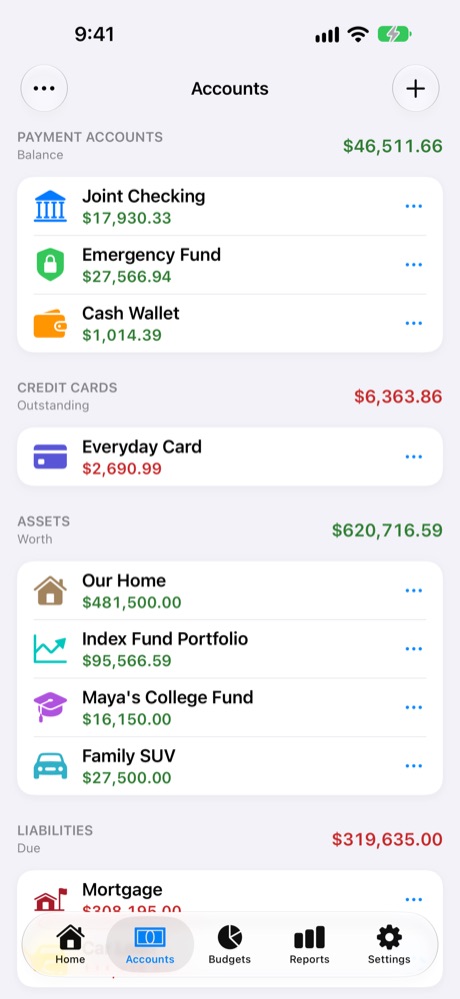
Closed a card or sold the car? Hide the account instead of deleting it, and everything it recorded stays.
Tap ••• on the account (or touch and hold it) and choose Hide. It disappears from the Accounts list.
To see hidden accounts, tap ••• at the top left of Accounts and turn on Show Hidden Accounts. Hidden ones appear dimmed.
To bring one back for good, open its ••• menu and choose Unhide.
A hidden account isn't offered when you add a transaction, so old accounts stay out of your way.
Its transactions still count: they stay in reports, Net Worth and its group's total. Hiding only tidies the list.
Hiding syncs: it's hidden on all your devices and for everyone in the profile.
Travel Rewards Card hidden: still in the total.
Show Hidden Accounts.
Hide in the account's menu.
Categories
Categories say what money was for (Groceries, Rent, Dining Out) or where it came from (Salary, Freelance). They live on the Budgets tab, with Expense and Income at the top.
Add a category
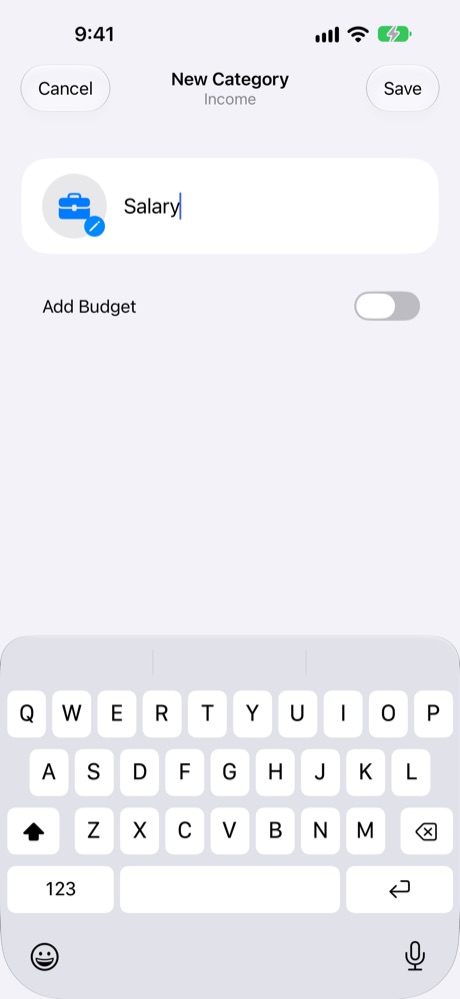
Go to Budgets, choose Expense or Income at the top, then tap +.
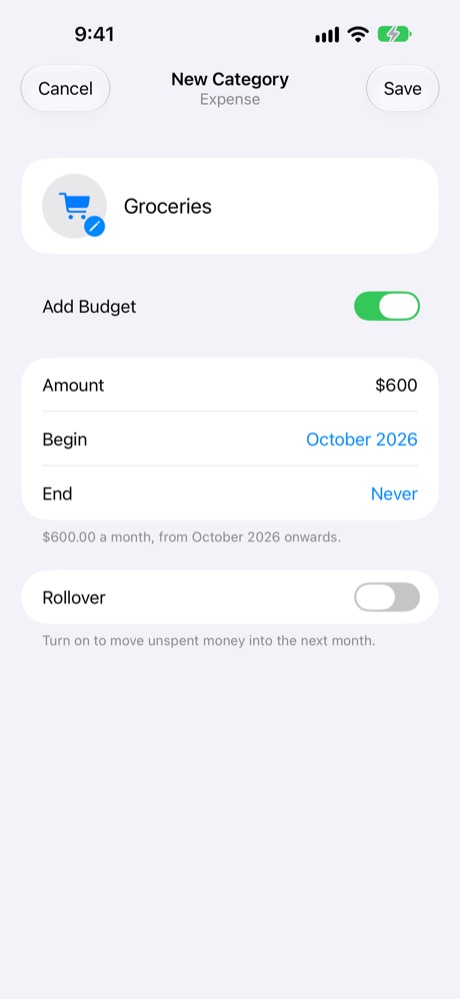
Type a name. MoneyBook suggests a matching icon, like a cart for "Groceries".
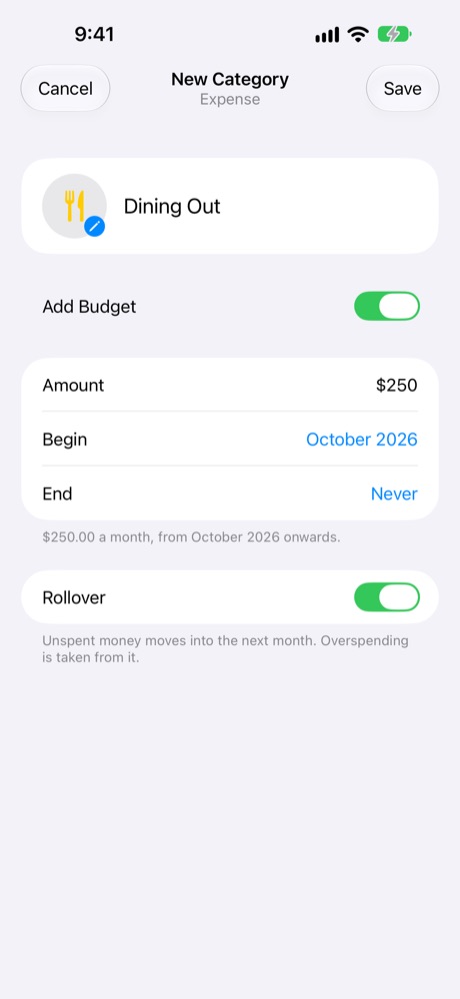
Turn on Add Budget if you want one (see Budgets), then tap Save.
Expense category with a budget.
Income category: Salary.
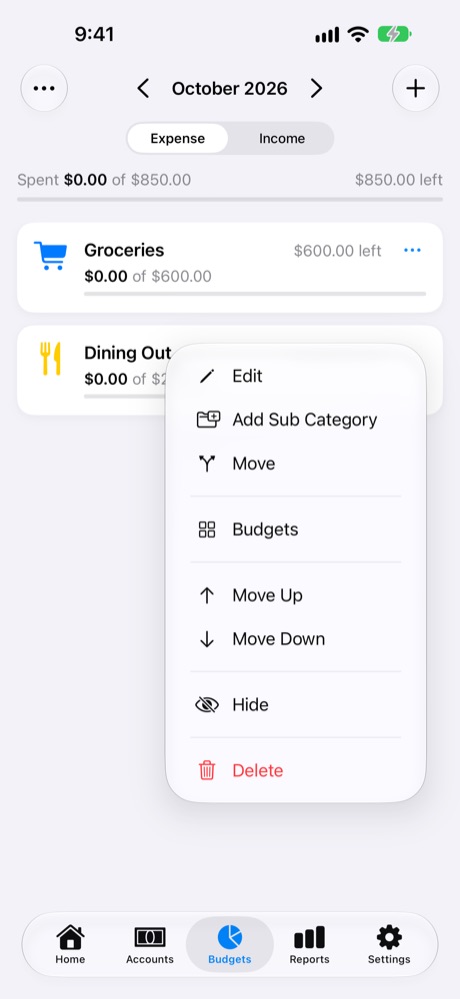
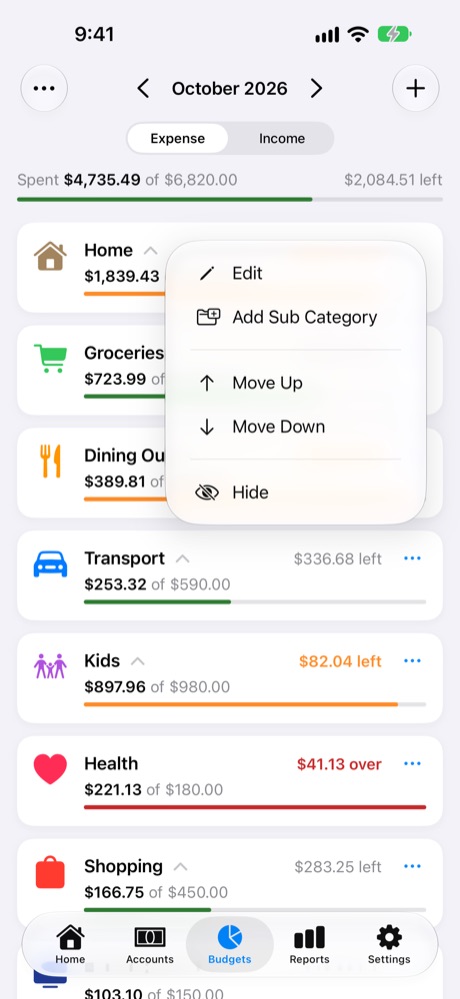
The ••• menu on a category.
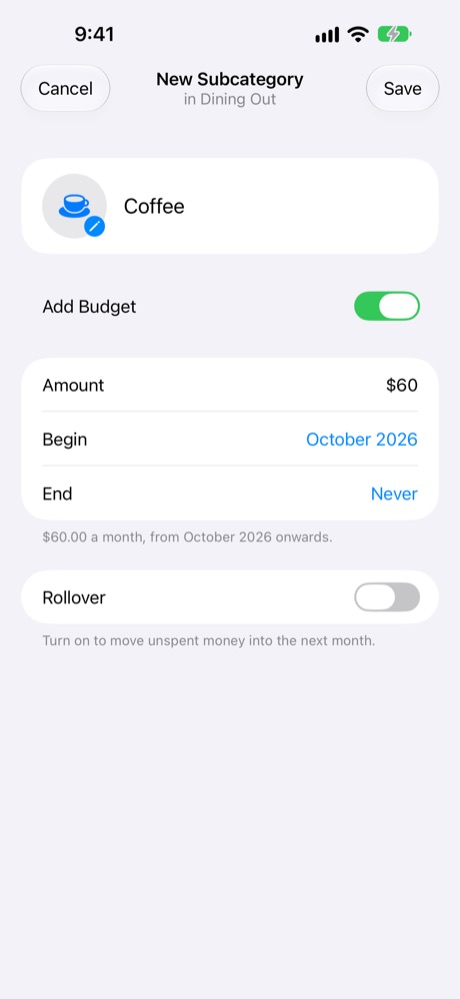
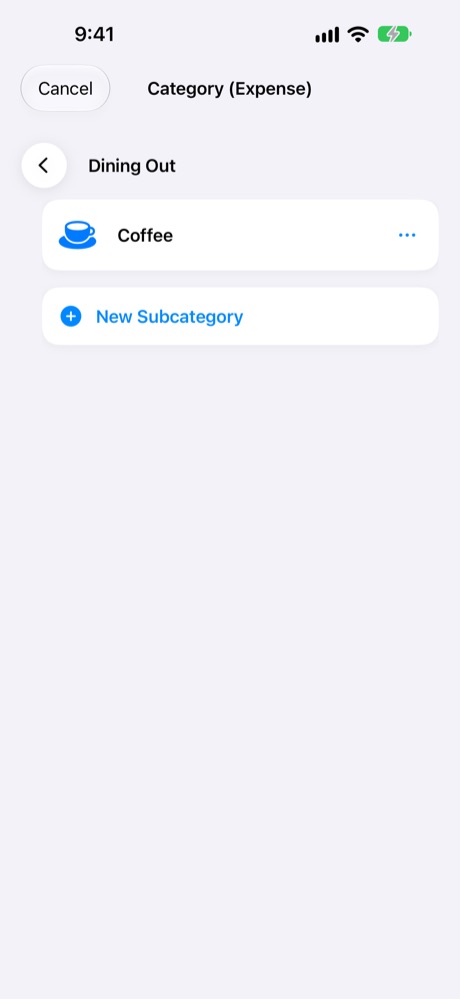
Add Sub Category: Coffee in Dining Out.
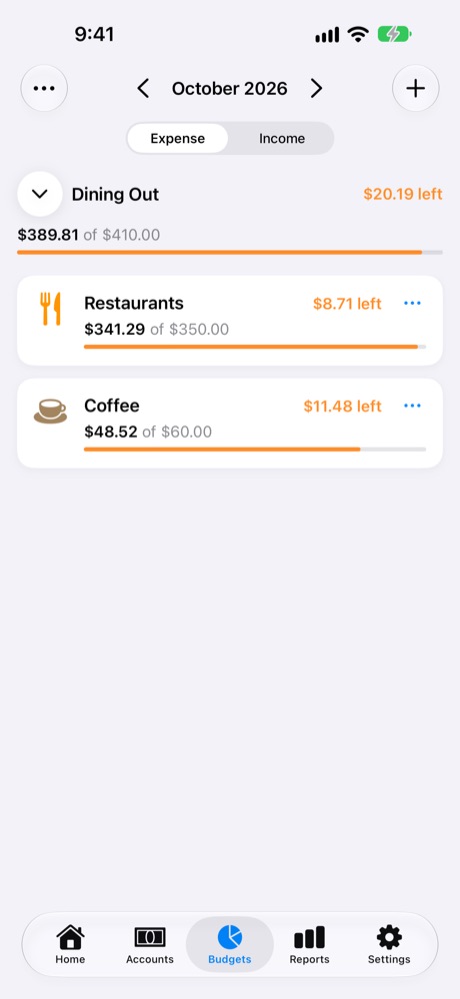
Dining Out now totals its subcategories.
Subcategories
Group related categories under one, like Restaurants and Coffee under Dining Out, or Fuel, Parking and Car Care under Transport. Tap ••• on a category and choose Add Sub Category.
A category with subcategories adds them up: its spending and its budget are the totals of its subcategories.
Tap a group on the Budgets tab to see its subcategories.
If the category already has transactions, MoneyBook moves them into a new subcategory with the same name, so nothing is lost.
The category menus
Tap ••• on a category, or touch and hold it. What you see depends on where the category sits:
Option
Group (has subcategories)
Top-level category
Subcategory
Edit
✓
✓
✓
Add Sub Category
✓
✓
–
Move
–
✓
✓
Budgets
–
✓
✓
Move Up / Move Down
✓
✓
✓
Hide / Unhide
✓
✓
✓
Delete
–
✓
✓
Edit: rename it, or change its icon and colour.
Add Sub Category: add a category inside this one. Categories go two levels deep, so subcategories can't have their own.
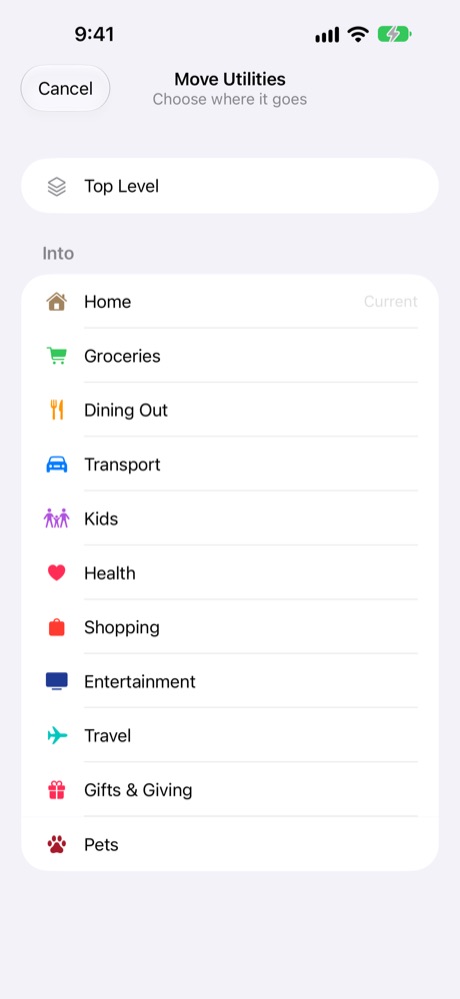
Move: put the category inside a group, or move a subcategory to another group or back to the top level. A group itself can't be moved into another.
Budgets: open the category's budget calendar to set or change its budget for any period. A group has no Budgets option: its budget is always the total of its subcategories' budgets.
Move Up / Move Down: change its place in the list. On version 27, dragging works too.
Hide / Unhide: see below.
Delete: removes the category and all its transactions, after asking. A group can't be deleted while it has subcategories: move or delete them first.
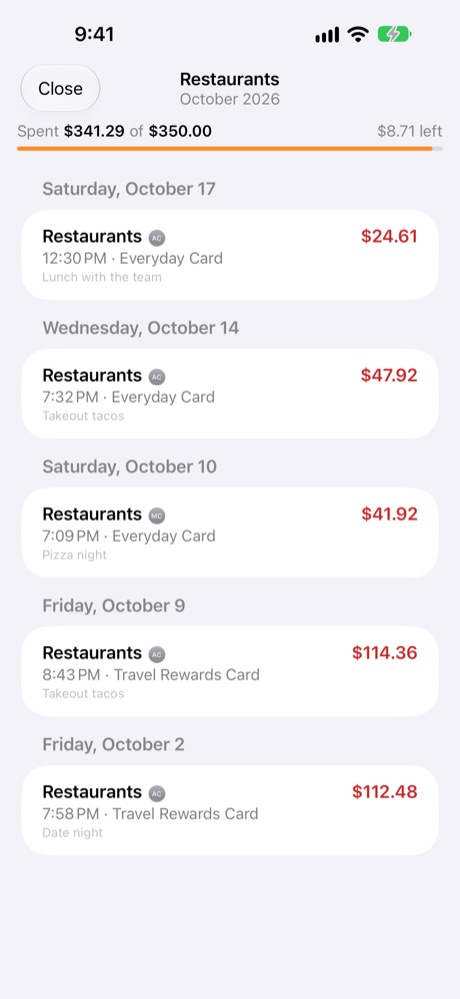
With View Only access, the menu only has Budgets, to look at a category's budget calendar. Tapping a category card opens its subcategories (for a group) or its transactions for the period.
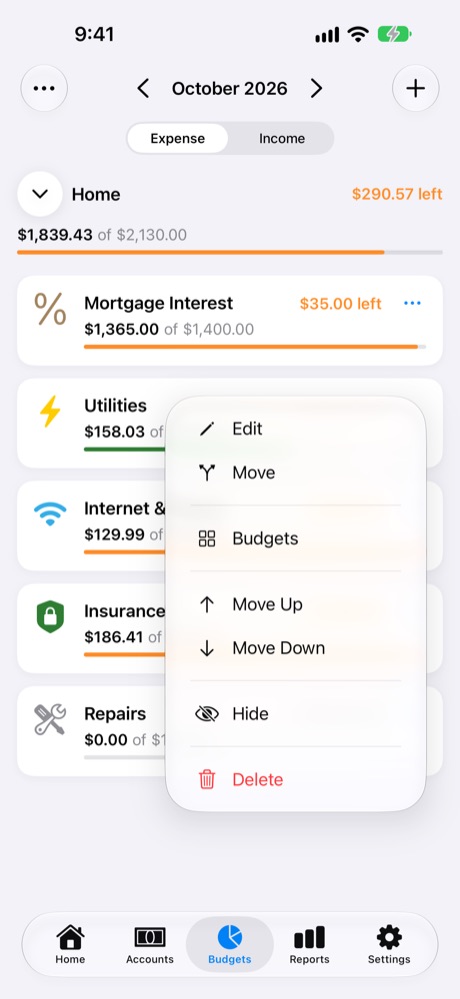
Group menu: Home.
Subcategory menu: Utilities.
Top-level category menu.
Move: Top Level or into a group.
Hiding a category
Hide categories you no longer use, like a baby's nursery costs once they've grown, without losing their history.
Tap ••• on the category and choose Hide.
To see hidden categories, tap ••• at the top left of Budgets and turn on Show Hidden Categories.
Choose Unhide from its menu to bring it back.
A hidden category isn't offered when you add a transaction, but its past transactions still appear in reports.
Reorder and reorganise by dragging (iOS 27)
On iOS, iPadOS and macOS 27, you can drag. On version 26, use Move Up, Move Down and Move from the menus instead: they do the same.
Reorder: touch and hold a category or an account, then drag it up or down. Pickers use the same order.
Move inside another category: while dragging a category, a panel appears at the bottom saying "Drop on a category to move it inside". Drop it on a group there. MoneyBook asks you to confirm first.
Prefer menus? Move Up, Move Down and Move are in every ••• menu.
Add categories as you goWhen you're logging a transaction and no category fits, tap New Category at the bottom of the category list. You don't need to leave the form.
Budgets
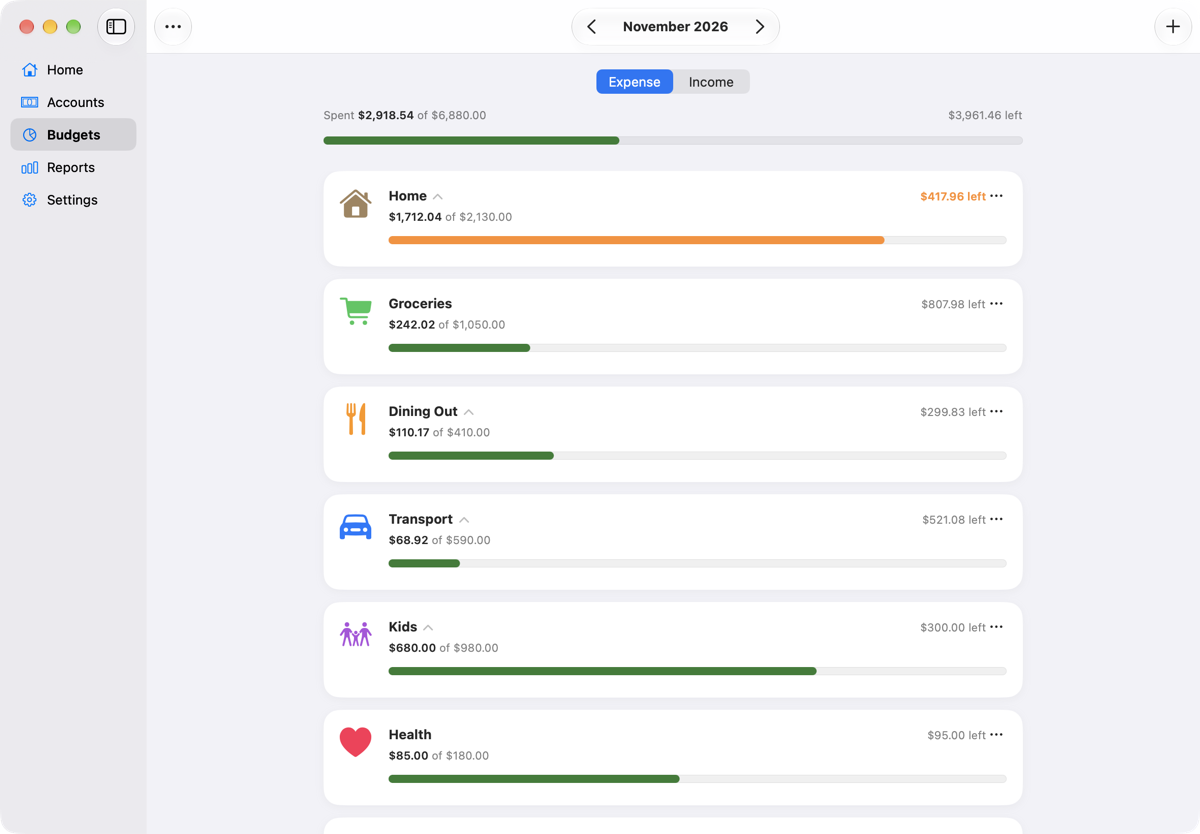
A budget is how much you plan to spend in a category each period, or for income, how much you expect to receive. The Budgets tab shows how every category is doing, with a total at the top.
Set a budget
When adding or editing a category, turn on Add Budget. For an existing category, tap Set Budget on its card.
Enter the Amount per period.
Begin is the first period it applies to. End is Never unless the budget should stop.
Turn on Rollover if unspent money should carry over (see below), then tap Save.
Budget with Rollover on.
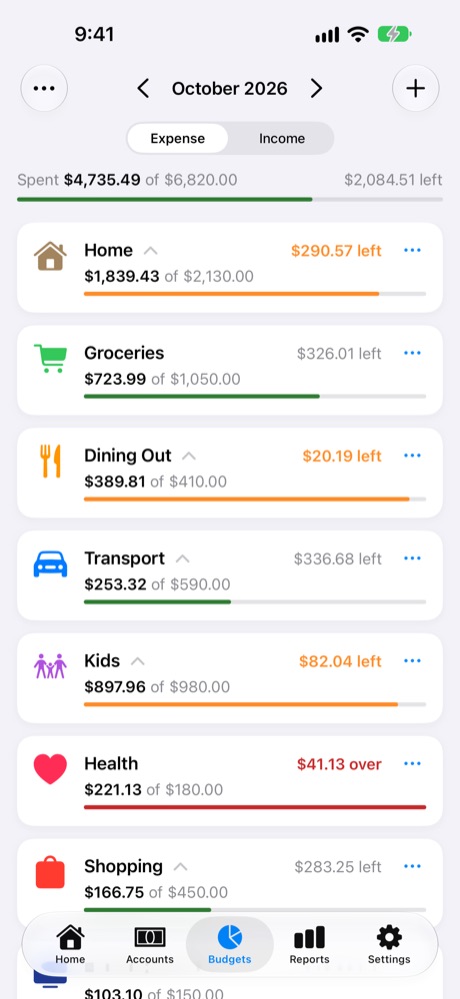
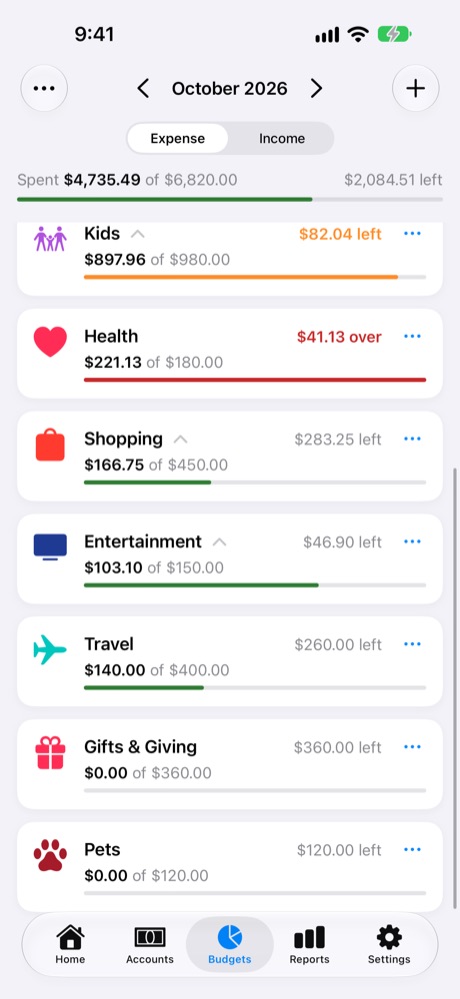
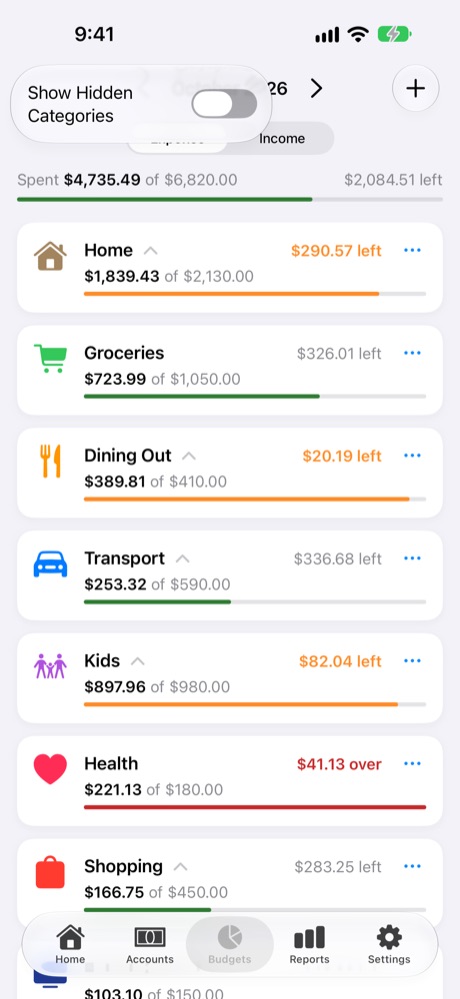
Budgets for the month.
Tap a group: subcategories.
Tap a category: what's in it.
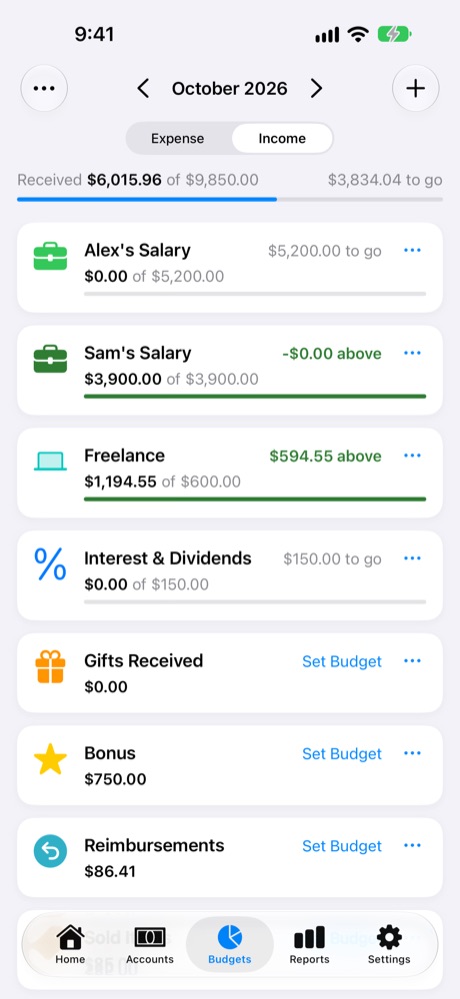
Income targets.
Reading the bars
Green: under 80% used Orange: 80% or more, nearly there Red: over budget
The top line totals everything: "Spent $4,735.49 of $6,820.00", and how much is left across all categories. Each card says how much is left, like "$326.01 left", or how far over you are, like "$41.13 over". For income, cards show how much is still to come ("to go") or how far you're above target. Use the arrows next to the month to look at past or future periods.
Rollover: let budgets carry over
Normally each period starts fresh: whatever you didn't spend in October is forgotten in November. With Rollover on, a category keeps a running balance from period to period:
Unspent money is added to the next period's budget.
Overspending is taken off the next period's budget.
Why use it
Some costs don't arrive evenly. Clothes, gifts, car repairs, holidays and school trips are cheap one month and expensive the next. Rollover turns a monthly amount into a pot that builds up. Put aside $60 a month for gifts and, by December, the money from the quiet months is there for the holidays. It also keeps you honest: overspend this month and next month's budget is smaller, so the yearly total stays on track.
An example
Gifts & Giving has a budget of $60 a month, with Rollover on:
Month
Budget
Carried in
Available
Spent
Carried out
September
$60
$0
$60
$20
+$40
October
$60
+$40
$100
$0
+$100
November
$60
+$100
$160
$45
+$115
December
$60
+$115
$175
$240
−$65
January
$60
−$65
−$5
$0
−$5
December's $240 of presents fitted mostly within what had built up. The $65 overspend came off January, leaving it slightly over before anything was spent. The Budgets tab shows "over" until the balance recovers.
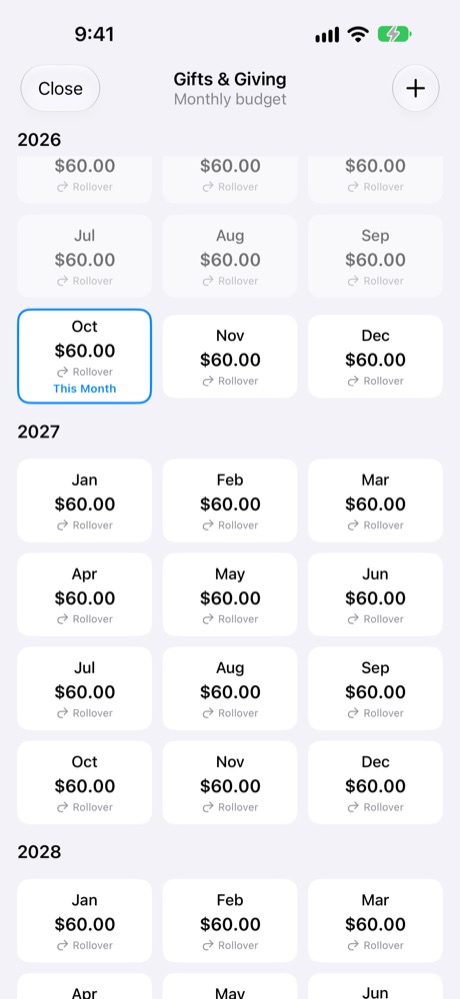
In the sample family, Gifts & Giving has $60 a month with rollover. After quiet months it has $360 available, ready for birthdays and the holidays. Its budget calendar marks every period that rolls over.
Gifts & Giving: $360 available from rollover.
The calendar marks Rollover periods.
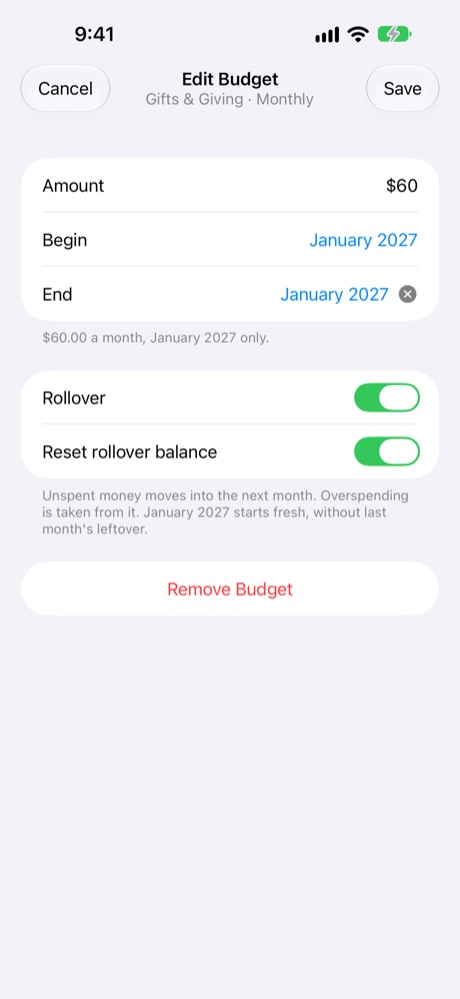
Reset rollover balance for January.
Good candidates for Rollover
Turn it on for lumpy or saved-for costs: gifts, clothes, car care, home repairs, holidays, medical, subscriptions billed yearly.
Leave it off for steady everyday spending, like groceries, coffee or fuel, where each month should stand on its own.
Reset rollover: start a category fresh
Reset rollover balance wipes the carried balance, whether it's built-up savings or overspending. That period gets just its own budget. Rollover then carries on as normal from that period.
When to use it
A one-off blew the budget. A $900 car repair shouldn't leave Car Care "over" for a year. Reset next month and start clean.
Start of a new year. Begin January with no leftovers from last year.
You spent the pot on purpose. You saved up in Holidays, took the trip, and want the saving to start again from zero.
You changed the amount. After raising or lowering a budget, a reset makes the new amount the real starting point.
How to reset
Tap ••• on the category → Budgets to open its budget calendar.
Tap the period that should start fresh, like January.
With Rollover on, turn on Reset rollover balance. The text below explains, for example: "January 2027 starts fresh, without last month's leftover."
Tap Save. In the calendar, that period now shows Reset, and periods with rollover show Rollover.
Rollover can go below zeroIf overspending carried in is bigger than the period's budget, the category starts the period already over, and the Budgets tab shows how far. That's rollover working as intended. Reset it if you'd rather start fresh.
Change a budget, for one period or from then on
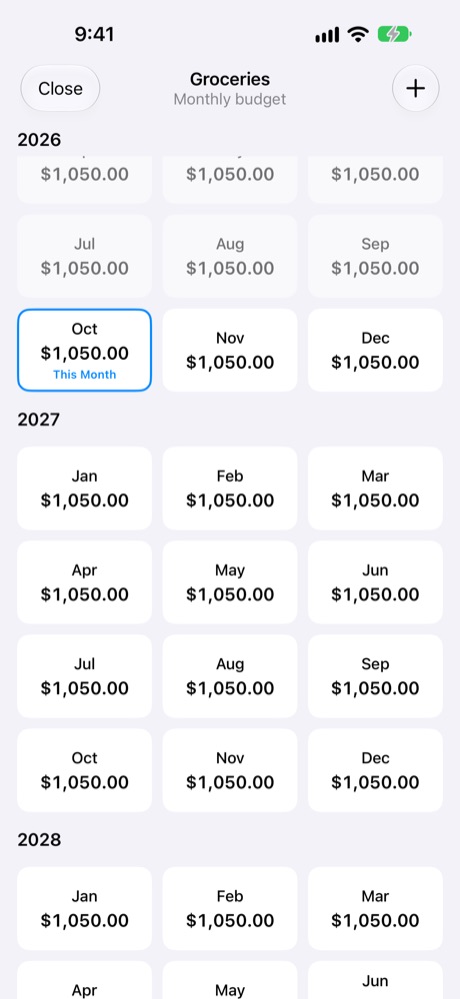
Tap ••• on a category and choose Budgets to open its budget calendar, with every period's amount. Tap a period to edit it:
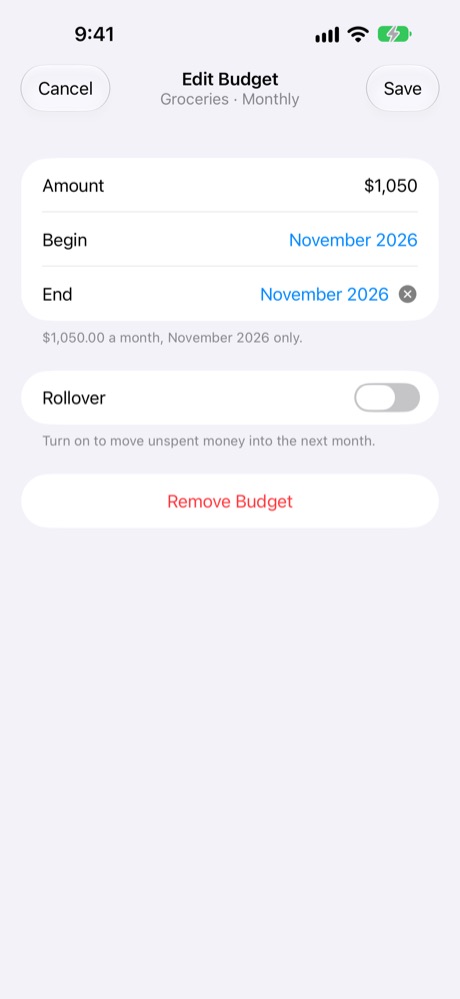
Begin and End both on that period: the change applies to that period only, like a bigger grocery budget in December.
Clear the End date: the change applies from that period onwards.
Remove Budget: MoneyBook asks whether to remove it for that period only or from that period onwards.
Budget calendar for Groceries.
Edit Budget: November only.
Show Hidden Categories.
Adding transactions
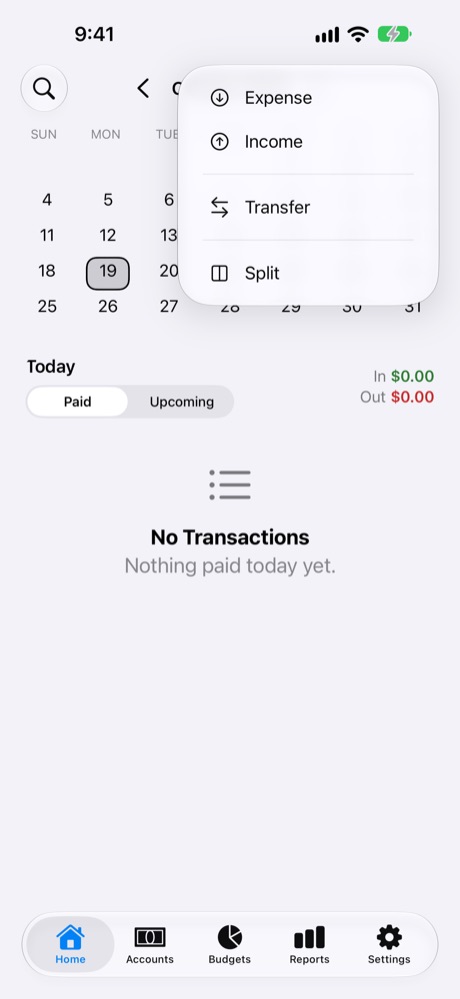
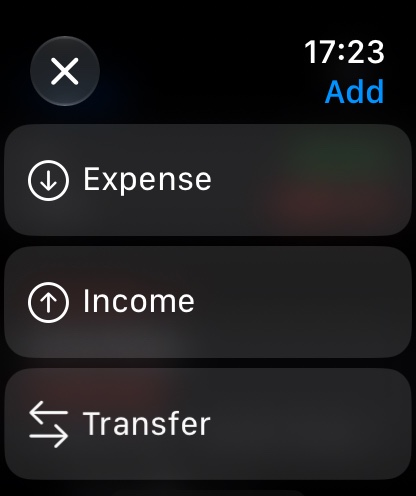
Tap + on Home and choose a type. You can also add expenses, income and transfers with Siri or a shortcut, or from the Apple Watch.
Type
Use it when
Example
Expense
Money leaves an account for something you bought
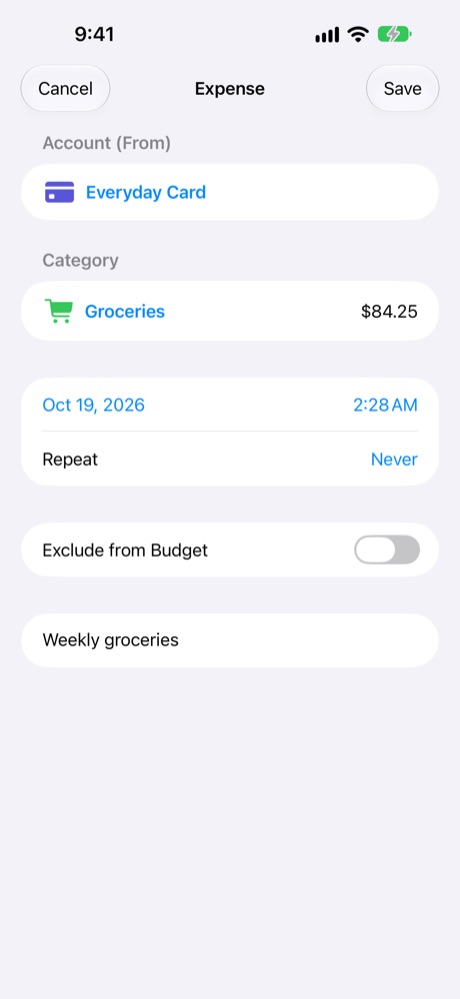
$84.25 of groceries on the Everyday Card
Income
Money arrives in an account
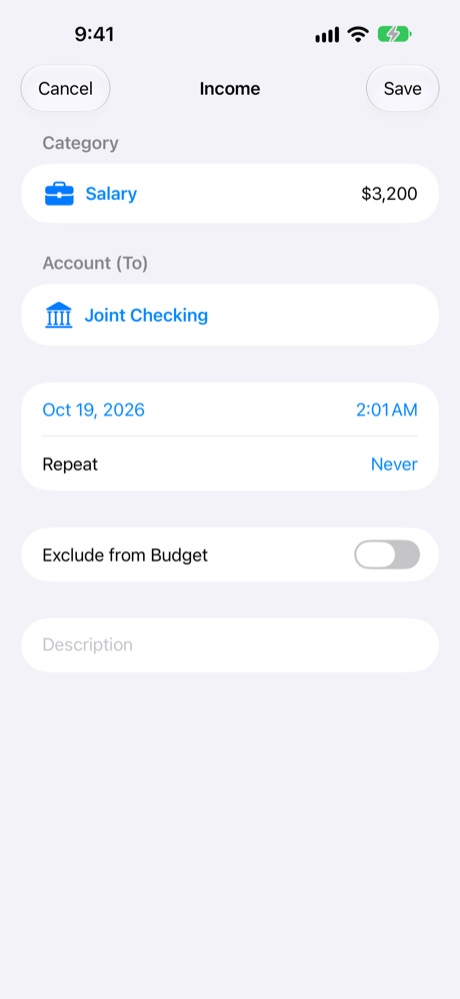
$3,200 salary into Joint Checking
Transfer
Money moves between your own accounts
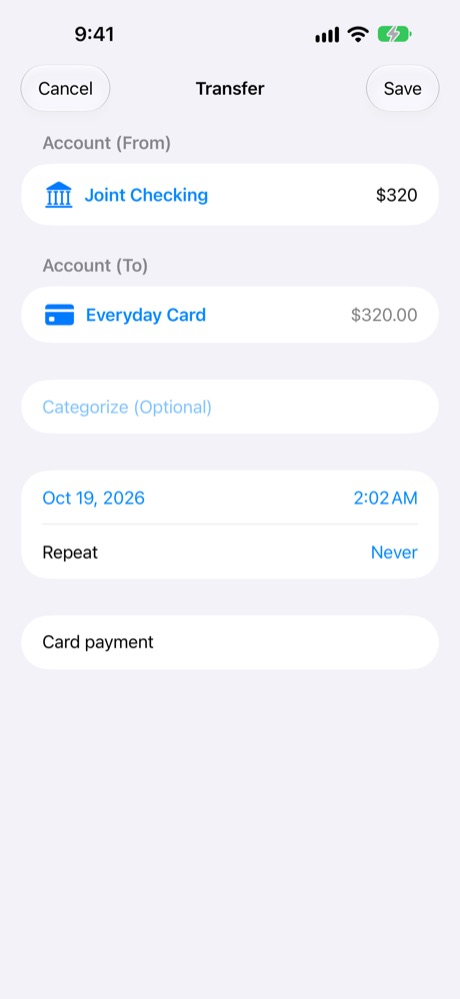
Paying $320 off the credit card from checking
Split
One payment covers several categories or accounts
One supermarket receipt for food, home and kids (see Splits)
Add an expense
Tap + → Expense.
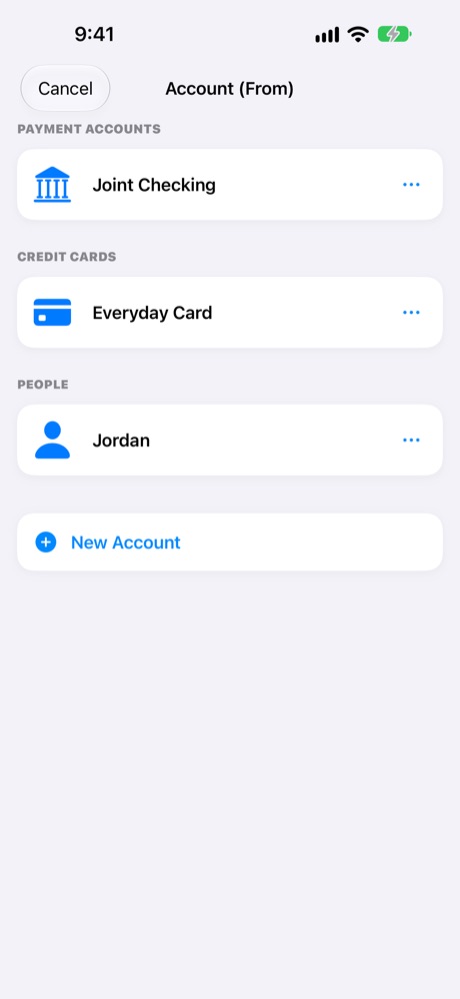
Account (From): the account you paid with. If you haven't made it yet, tap New Account in the list.
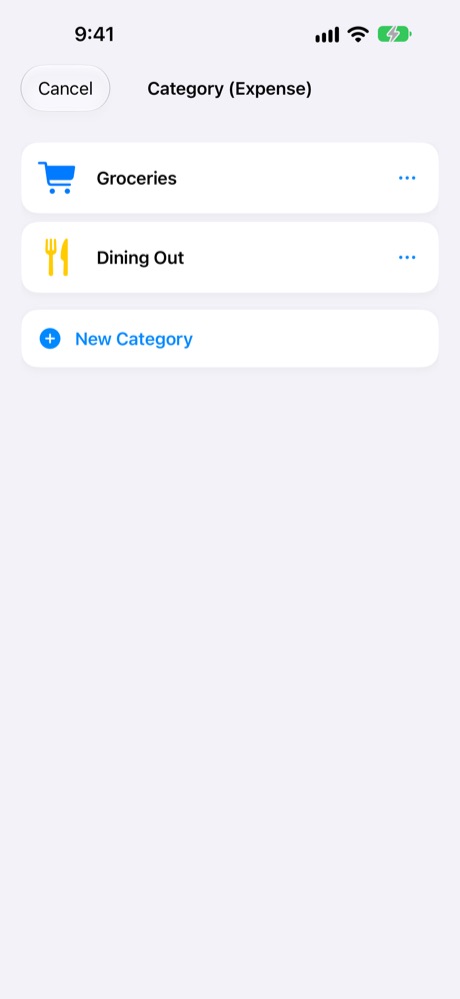
Category: what it was for. Tap a group to see its subcategories.
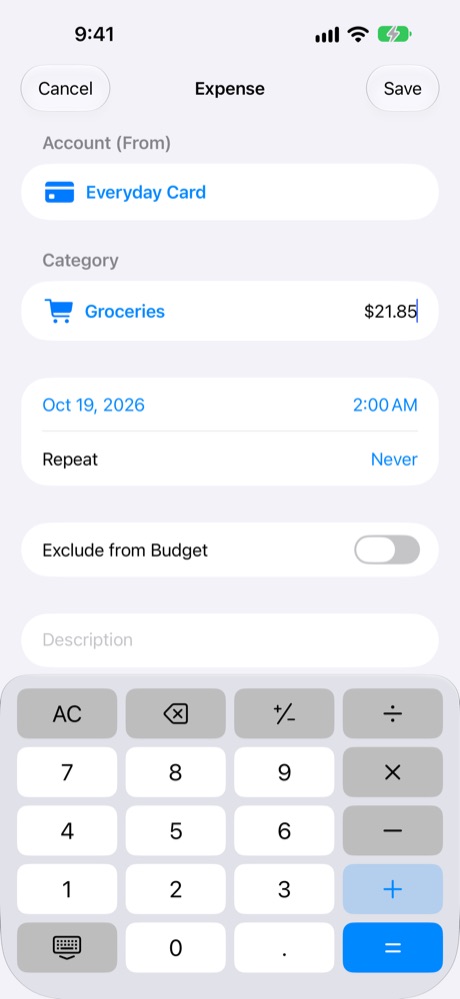
Amount: type it on the calculator keypad, which does + − × ÷. Add up a receipt (62.40 + 21.85 = 84.25) or split a bill (96 ÷ 3). AC clears it, and the keyboard key hides the keypad.
The date and time start at now. Tap them to change.
Add a description, like "Weekly groceries". Search finds it later.
Tap Save.
+: Expense, Income, Transfer or Split.
Choose the account.
Choose the category, or make one.
A group opens its subcategories.
The calculator adds up a receipt.
Ready to save.
Income and transfers
Income works the same way, with the account the money went into. A transfer has a From and a To account and one amount. Use transfers for paying off a card, moving money to savings, withdrawing cash, or lending to a friend (from your account to their person account).
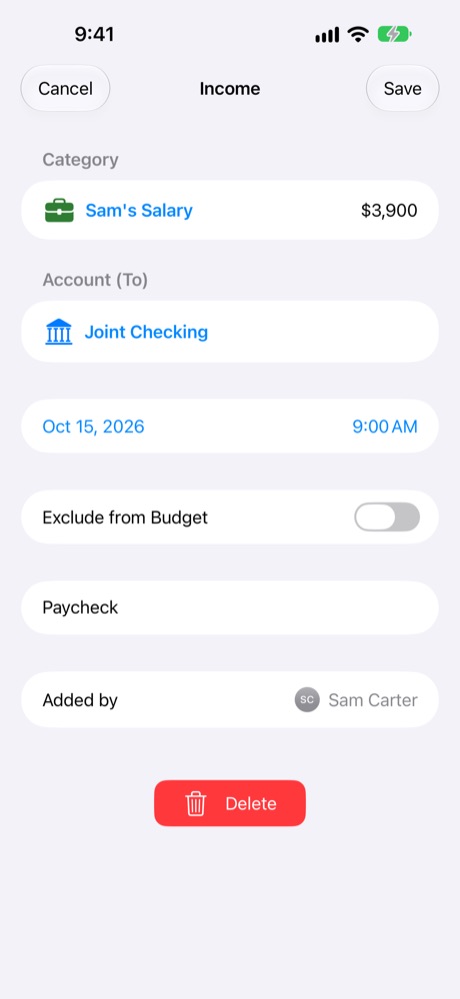
Income into checking.
Transfer: paying off the card.
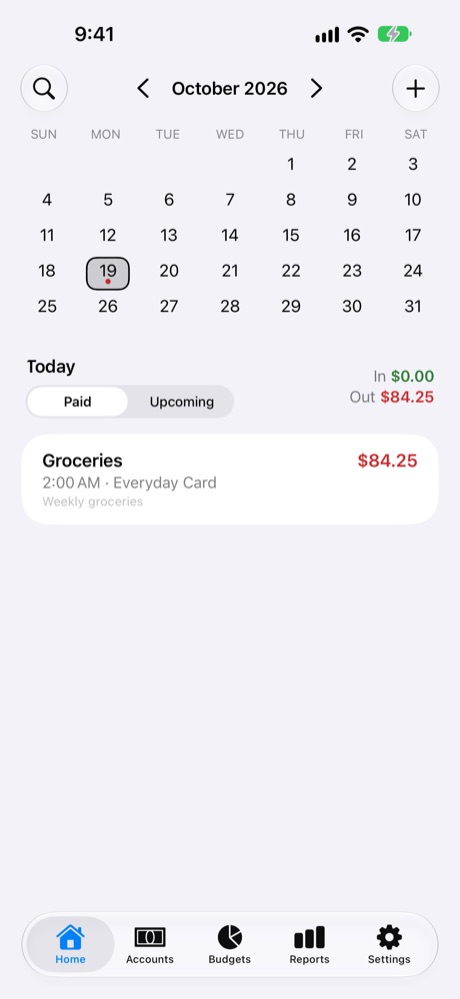
Your first transaction on Home.
Options on every transaction
Exclude from Budget: still changes the account balance, but doesn't count against the category's budget. Good for one-offs, like a new fridge you saved for.
Categorize (Optional) on a transfer: count the move against a budget. For example, money moved into your child's college fund can count towards the School budget.
Repeat, Automatic and Remind: for bills and paydays (see Bills and recurring).
Edit or delete
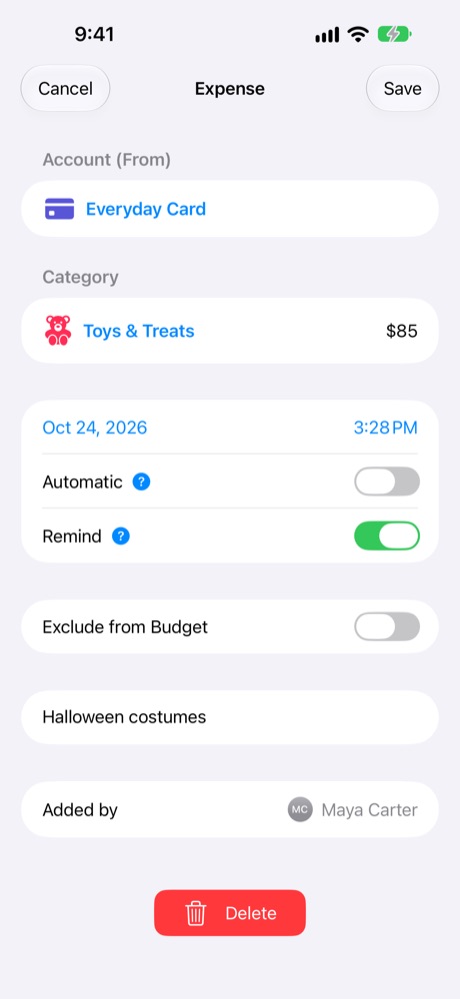
Tap any transaction, on Home, in an account's history, in a budget or in search results, to open it. Change anything and tap Save, or tap Delete. In a shared profile, Added by shows who logged it.
Balance adjustments
When an account's balance in MoneyBook doesn't match reality, use Balance Adjustment from the account's ••• menu and enter the real balance. MoneyBook records an adjustment for the difference. It doesn't count as spending or income in budgets.
Splits, with examples
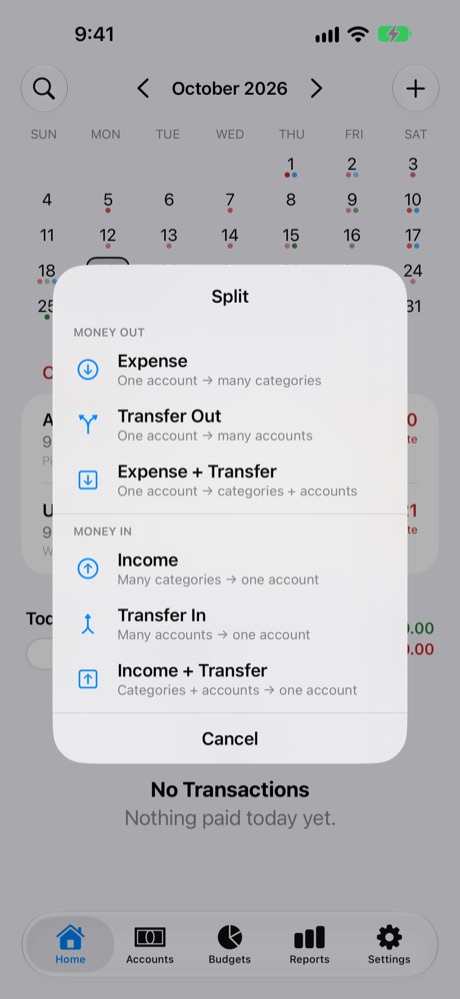
A split is one transaction with several parts. Use one when a single payment covers several categories, when money goes to or comes from several accounts at once, or both. Tap + → Split and choose one of six kinds.
There's always one account on one side: the account the money leaves (money out) or arrives in (money in). Its amount is the total of the other lines, so you never type it.
Add as many lines as you need with Add Category or Add account. Each line has its own amount.
Each category line has its own Exclude from Budget switch.
Account lines can carry an optional category, so a move between accounts can still count in a budget.
On Home, a split shows its total with a "2 splits" or "3 splits" badge. Every part appears in the right budget, account and report.
1. Expense split
One account → many categories
One payment that was for several different things.
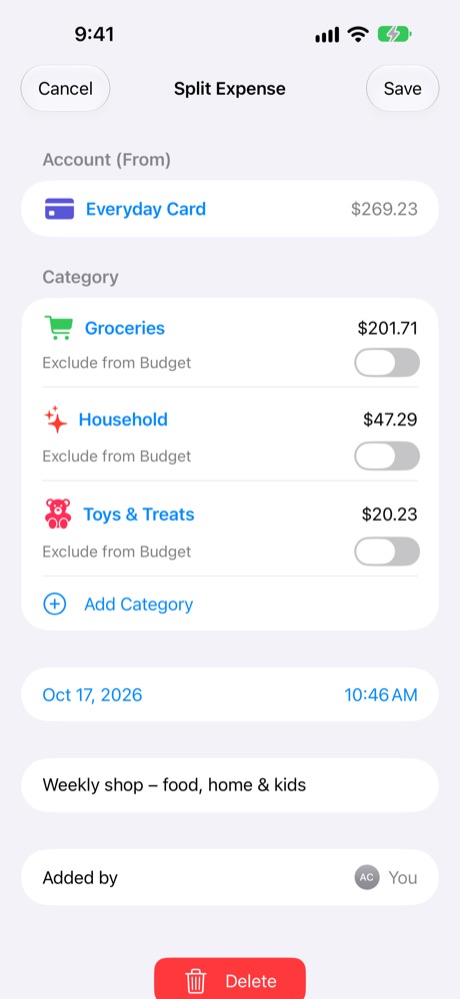
ExampleSaturday's supermarket shop on the Everyday Card was mostly food, but also cleaning supplies and a toy.
Groceries$201.71
Household$47.29
Toys & Treats$20.23
Paid from Everyday Card$269.23
Each category's budget gets its own part, and the card's balance goes up by $269.23.
Split Expense
2. Transfer Out
One account → many accounts
Money from one account shared out to several of your other accounts.
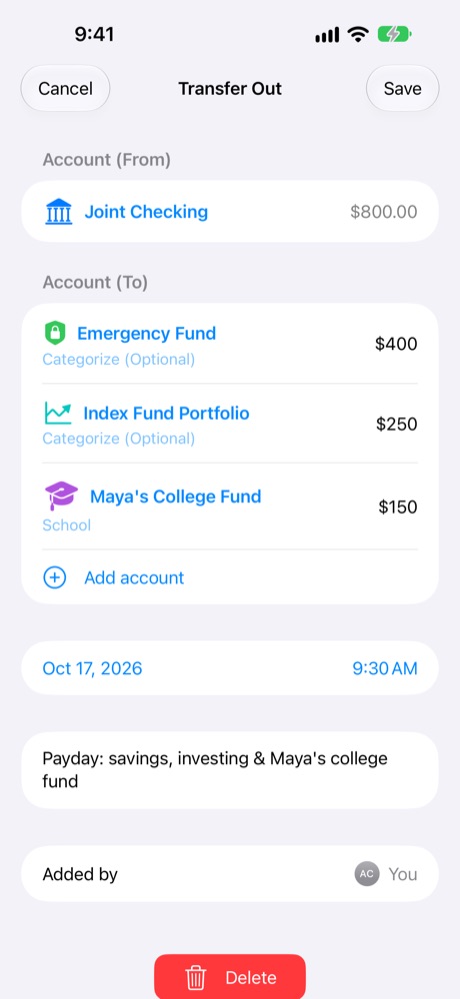
ExampleOn payday, $800 leaves Joint Checking: some to savings, some to investing, and some to the college fund. The college fund part is counted in the School budget, using Categorize (Optional).
→ Emergency Fund$400
→ Index Fund Portfolio$250
→ Maya's College Fund (School)$150
From Joint Checking$800
Each account's balance goes up by its part. Only the $150 with a category counts in a budget.
Transfer Out
3. Expense + Transfer
One account → categories + accounts
You paid for something, and part of it was really for someone else, or went to one of your own accounts.
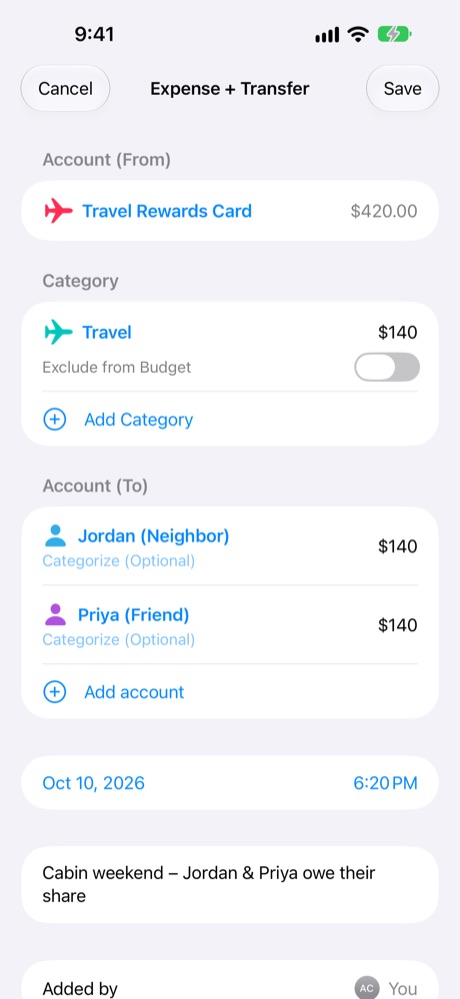
ExampleYou booked a $420 cabin weekend on the Travel Rewards Card for three. Your third is a Travel expense. Jordan and Priya owe you their thirds, so those go to their person accounts.
Travel (your share)$140
→ Jordan (Neighbor)$140
→ Priya (Friend)$140
Paid from Travel Rewards Card$420
Only $140 counts in your Travel budget. Jordan and Priya each show $140 owed to you on the Accounts tab. A mortgage payment works the same way: the interest is an expense, and the rest goes to the Mortgage account.
Expense + Transfer
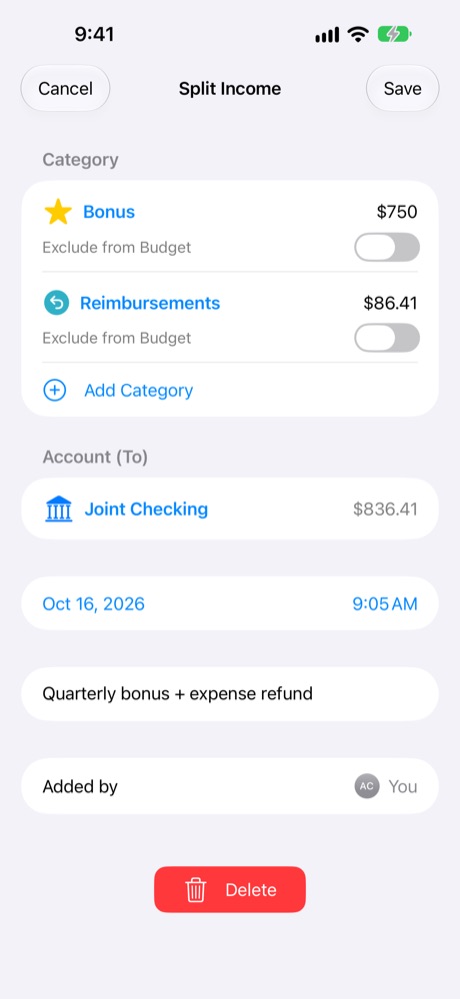
4. Income split
Many categories → one account
One deposit that was made up of several kinds of income.
ExampleOne payment from work landed in Joint Checking. It was a quarterly bonus plus a refund of expenses you'd paid for the company.
Bonus$750.00
Reimbursements$86.40
Into Joint Checking$836.40
Each income category gets its part, so your Bonus and Reimbursements totals stay accurate.
Split Income
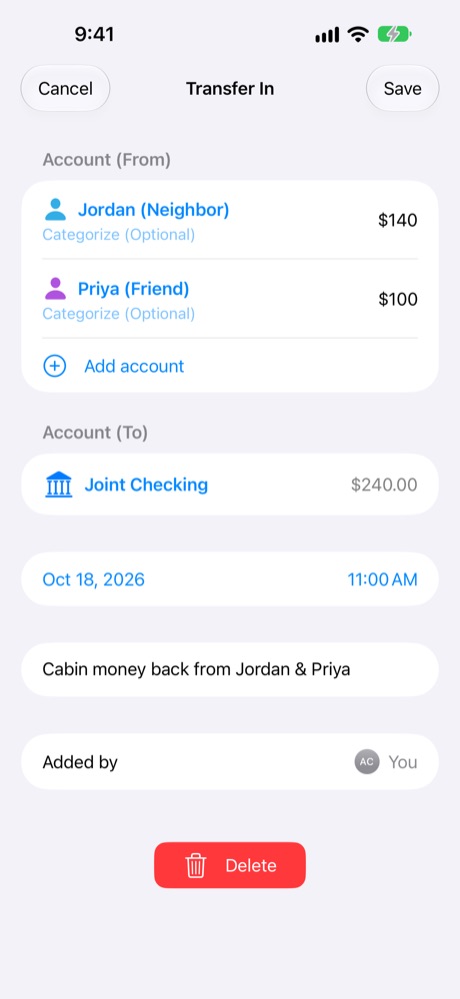
5. Transfer In
Many accounts → one account
Money from several accounts arriving in one.
ExampleJordan and Priya pay you back for the cabin. Jordan pays his whole $140, and Priya pays $100 now.
Jordan (Neighbor) →$140
Priya (Friend) →$100
Into Joint Checking$240
Jordan's balance goes back to $0, and Priya still owes $40. Another use: covering a big bill by moving money from two savings accounts into checking.
Transfer In
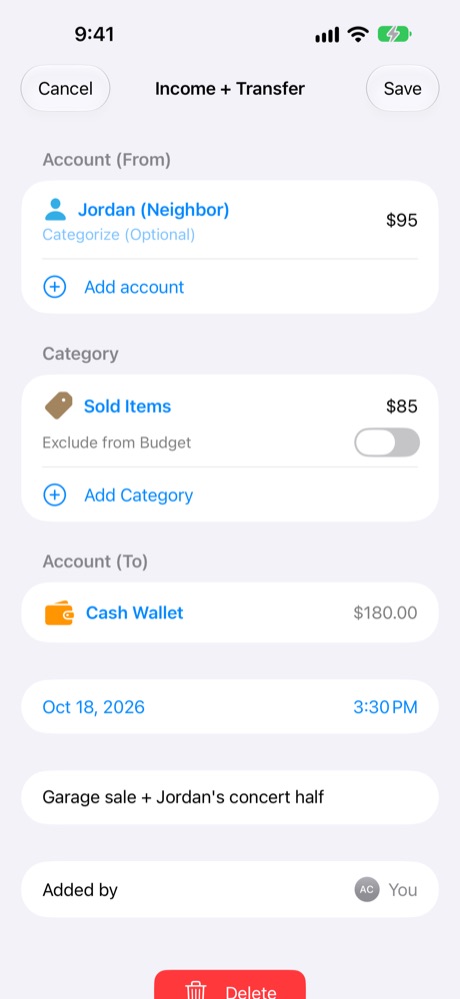
6. Income + Transfer
Categories + accounts → one account
Money arriving in one account that's partly income and partly money coming back from one of your accounts.
ExampleYou put $180 in your wallet after a garage sale: $85 from selling old things, and $95 from Jordan paying back his half of the concert tickets.
Sold Items (income)$85
Jordan (Neighbor) →$95
Into Cash Wallet$180
Only the $85 counts as income. The $95 clears what Jordan owed you.
Income + Transfer
Bills and recurring transactions
Give a transaction a future date and it becomes planned: it shows under Upcoming until its day comes. Make it repeat for rent, subscriptions, loan payments and paydays.
Set up a monthly bill
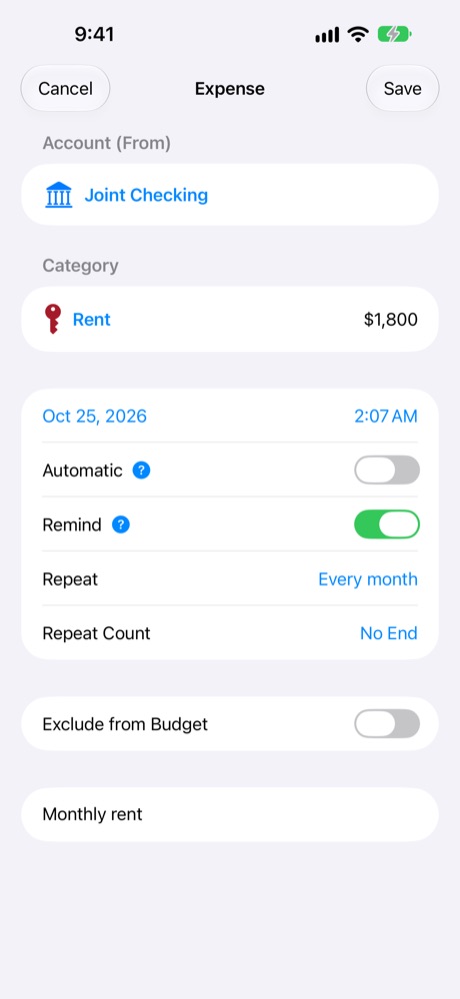
Tap + → Expense and fill in the account, category and amount, like $1,800 of Rent from Joint Checking.
Tap the date and choose the next due date. Two switches appear: Automatic and Remind.
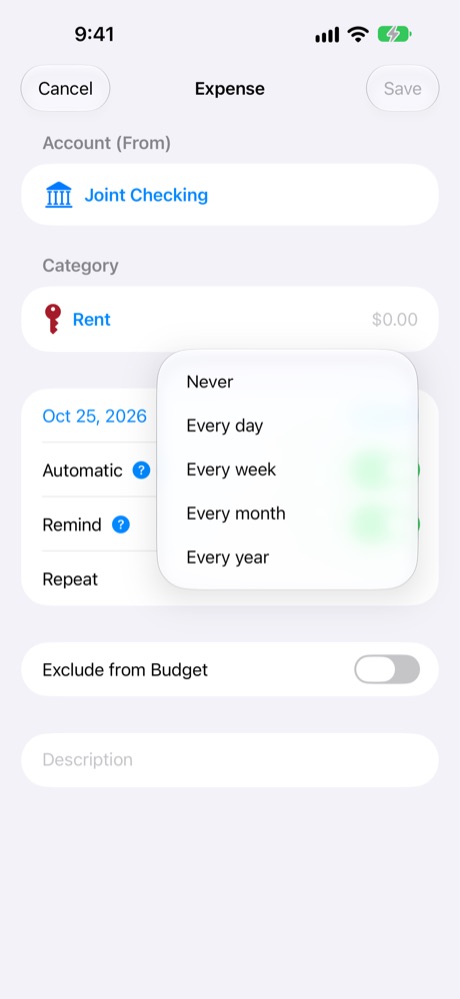
Tap Repeat and choose Every day, Every week, Every month or Every year.
Repeat Count sets how many times it repeats. Leave it at No End for bills that go on, or choose a number, like 12 instalments.
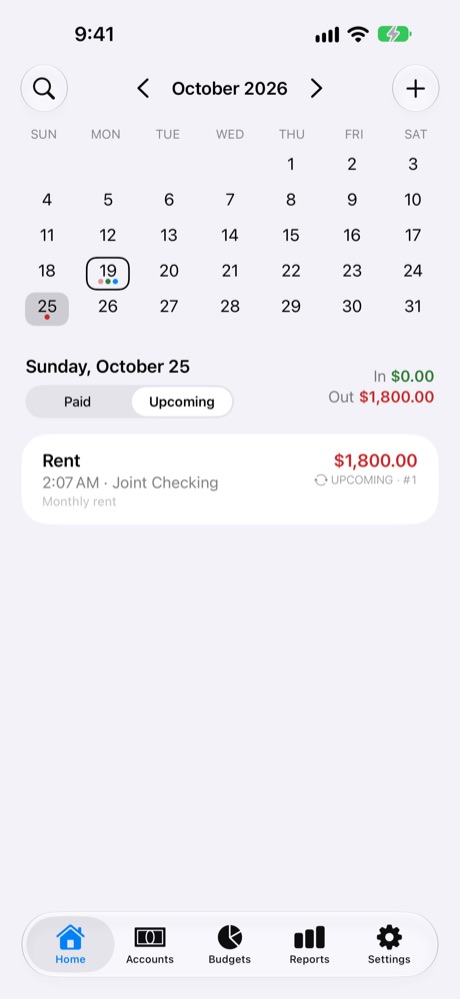
Tap Save. The next payment appears under Upcoming, numbered (#1, #2…).
Repeat: day, week, month or year.
Rent: monthly, no end, with a reminder.
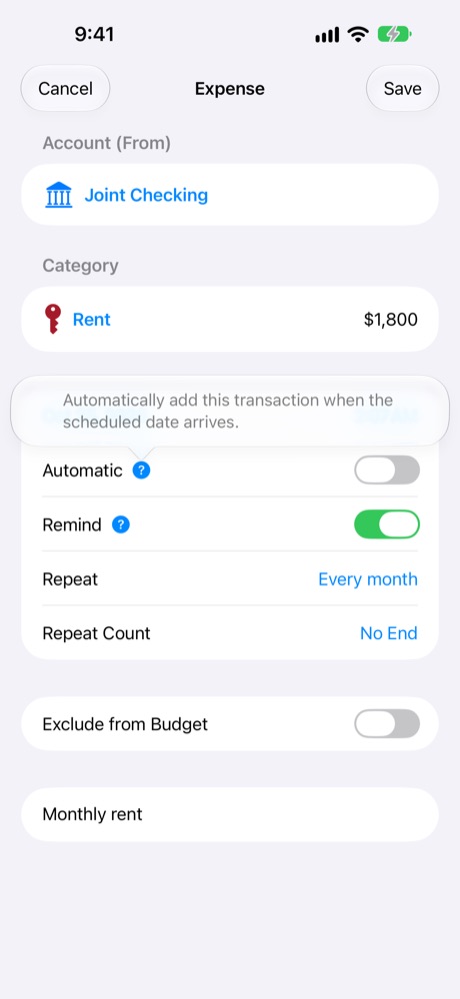
Tap ? for what a switch does.
Upcoming on the 25th.
Automatic or not?
Setting
On the day
Good for
Automatic on
MoneyBook adds it as paid by itself.
Direct debits and paydays that always happen: salary, streaming, a loan payment.
Automatic off
It waits for you. Once its date passes it becomes overdue until you mark it paid.
Bills you pay yourself, or whose amount changes: utilities, school fees, a credit card bill.
Changing or stopping a series
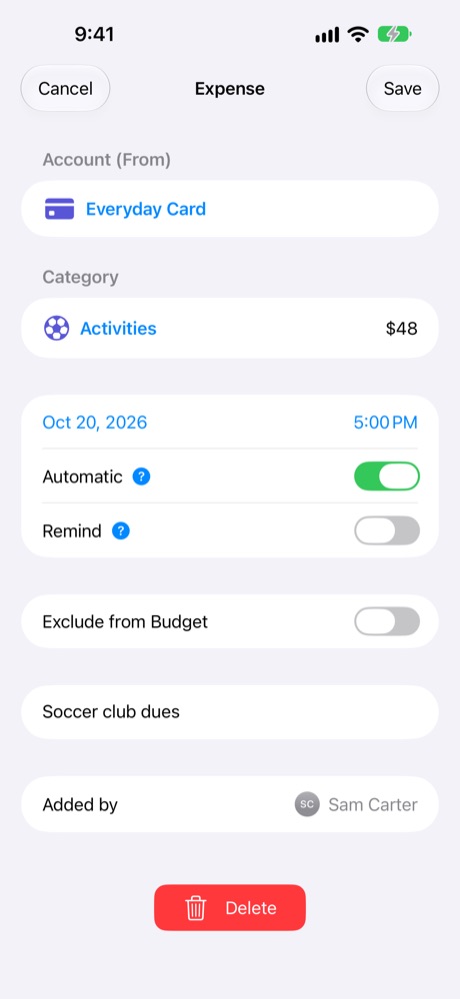
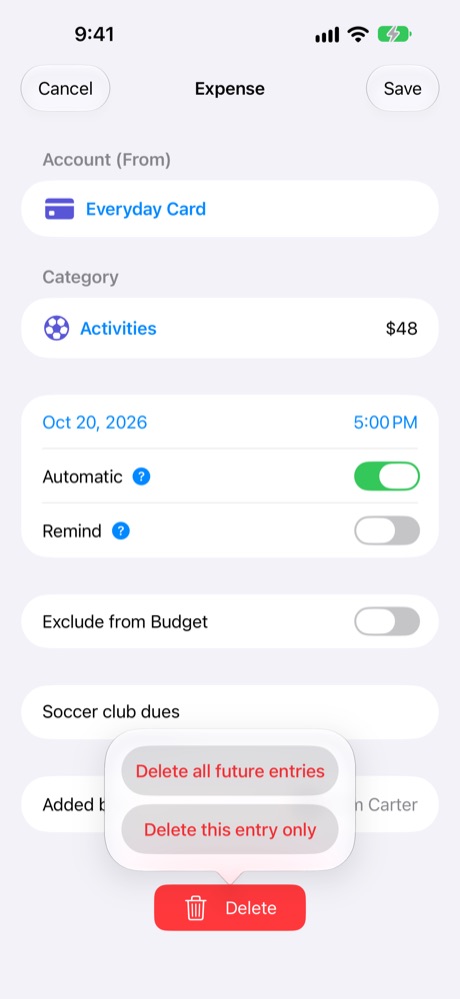
Open any upcoming entry to edit it. Later payments in a series (shown with their number, like #14) are read-only: open one and tap Edit Series to jump to the entry you can change. When you save a change to a repeating transaction, choose Save for this entry only (just this month) or Save for future entries (this one and every one after). Deleting works the same way: Delete this entry only or Delete all future entries. Payments already made are never changed.
A one-off planned expense.
An entry in a series.
Delete one or all future entries.
Reminders
Turn on Remind on a planned transaction and MoneyBook notifies you before it's due, at the transaction's time of day.
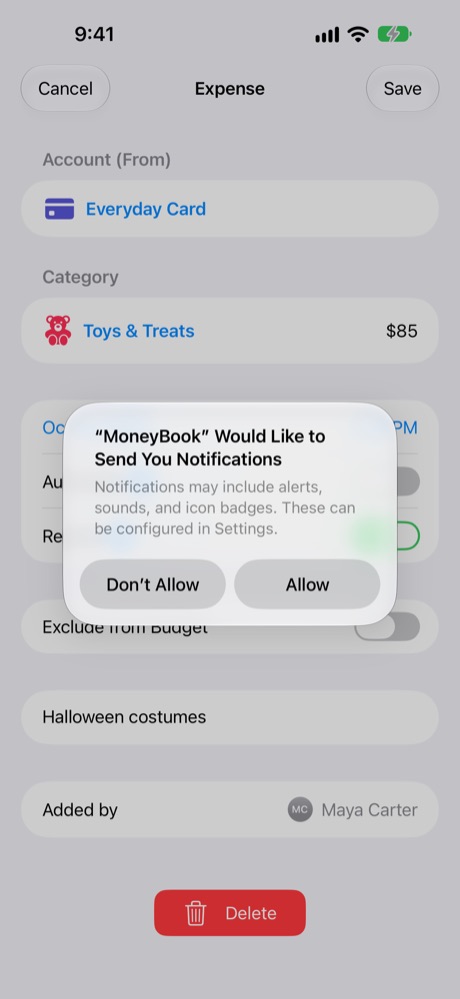
On a planned transaction, turn on Remind. The first time, allow MoneyBook to send notifications.
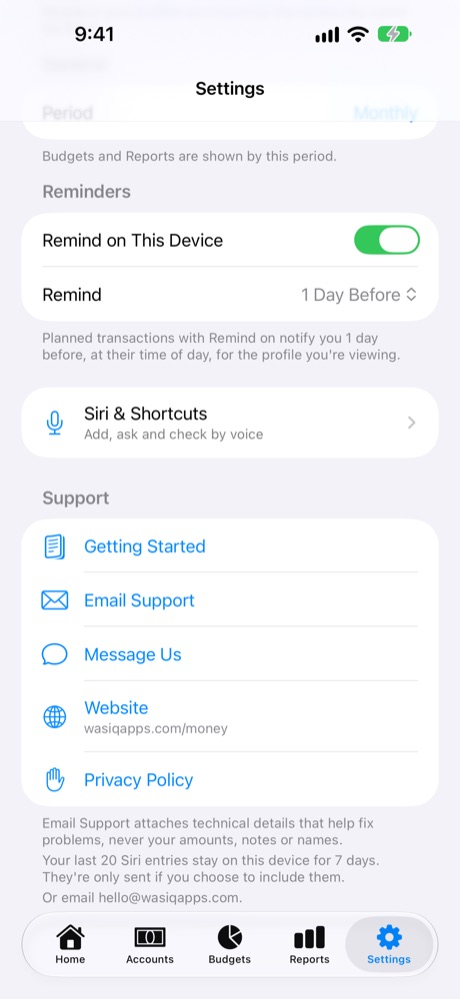
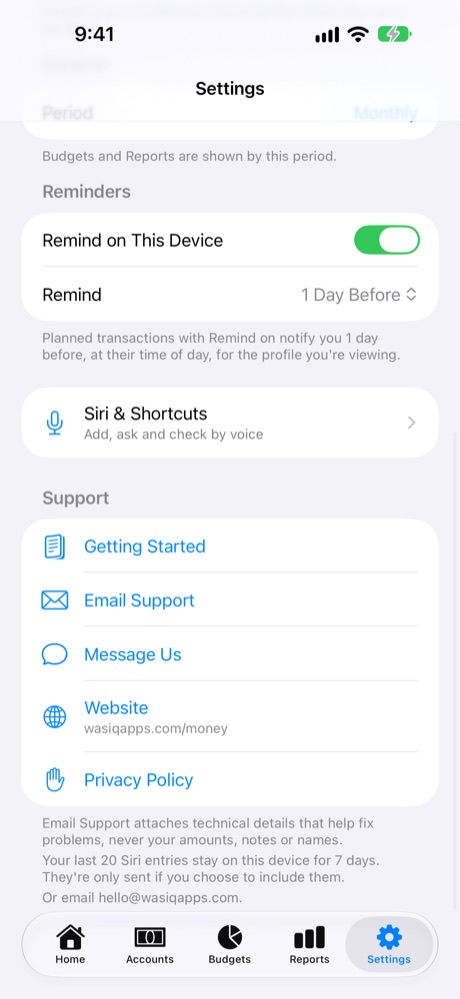
In Settings → Reminders, choose when: on the day, 1, 2 or 3 days before, or 1 week before.
When the reminder arrives, touch and hold it to Mark as Paid or Remind Tomorrow.
Allow notifications once.
Reminders in Settings.
MoneyBooknow
Rent$1,800.00 due tomorrow · Joint Checking
Mark as PaidRemind Tomorrow
Each device decidesRemind on This Device is set per device. Keep reminders on your iPhone and turn them off on your iPad, for example. Reminders are for the profile you're currently viewing.
Overdue bills
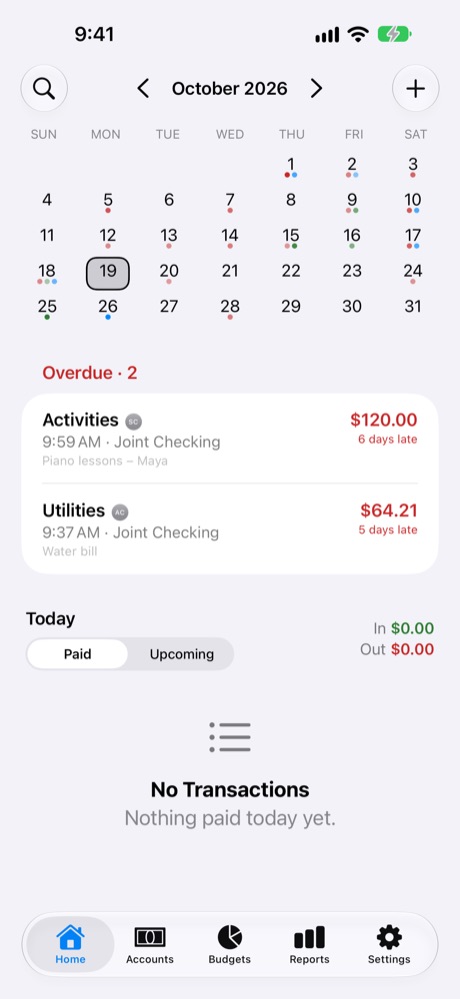
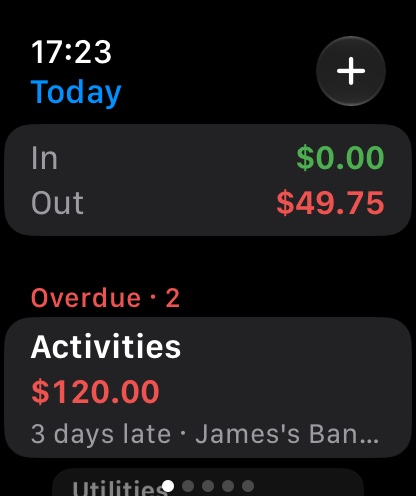
A planned transaction that isn't automatic becomes overdue once its date passes. Overdue bills appear at the top of Home, in red, with how many days late they are.
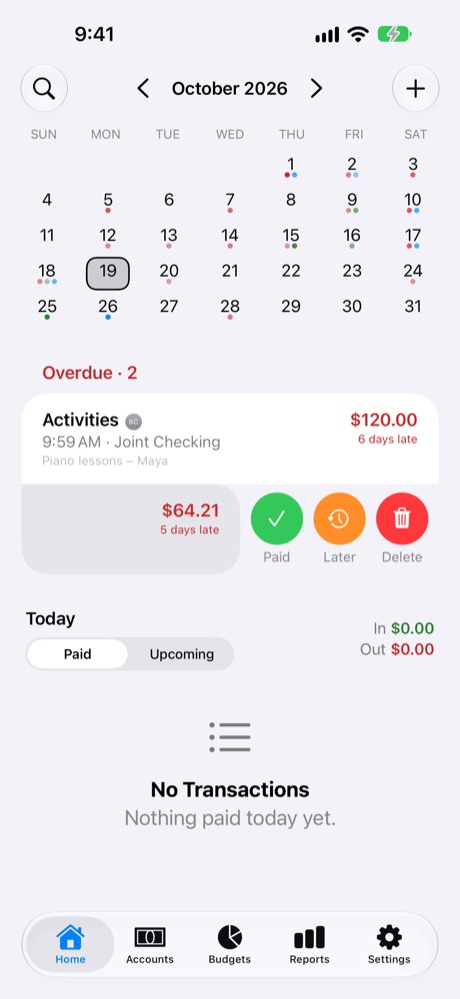
Swipe left on an overdue bill for Paid, Later or Delete.
Later moves it to Tomorrow, In 3 Days or Next Week, for a bill you haven't paid yet.
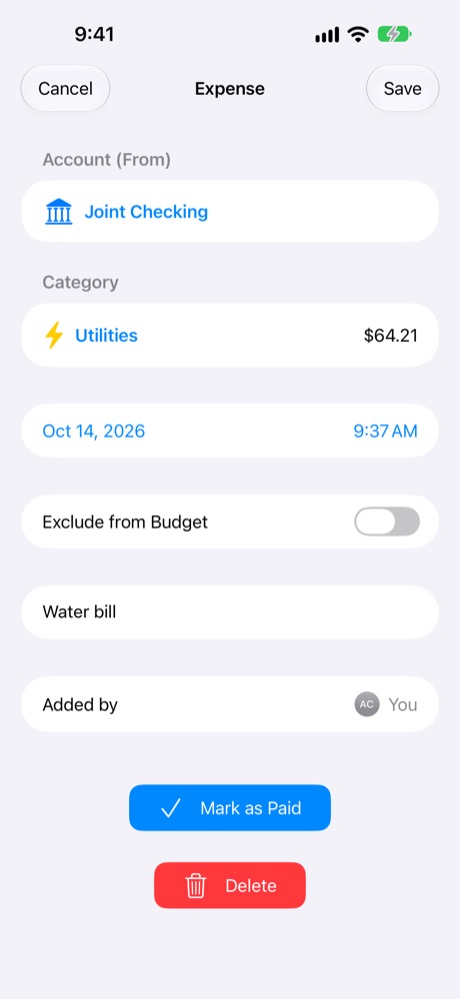
Or tap it, check the amount (it might have changed) and tap Mark as Paid.
With more than a few, tap See All for the full list.
From Siri or the Shortcuts app, What's Due reads out what's overdue and coming up, and Mark as Paid marks one paid (see Siri and Shortcuts).
Overdue · 2 on Home.
Swipe left: Paid, Later, Delete.
Open it to Mark as Paid.
The Home calendar
Home is a calendar of your money. Small coloured dots under each day show what happened: red for money out, green for money in, and blue for transfers. The deeper the colour, the bigger the amount.
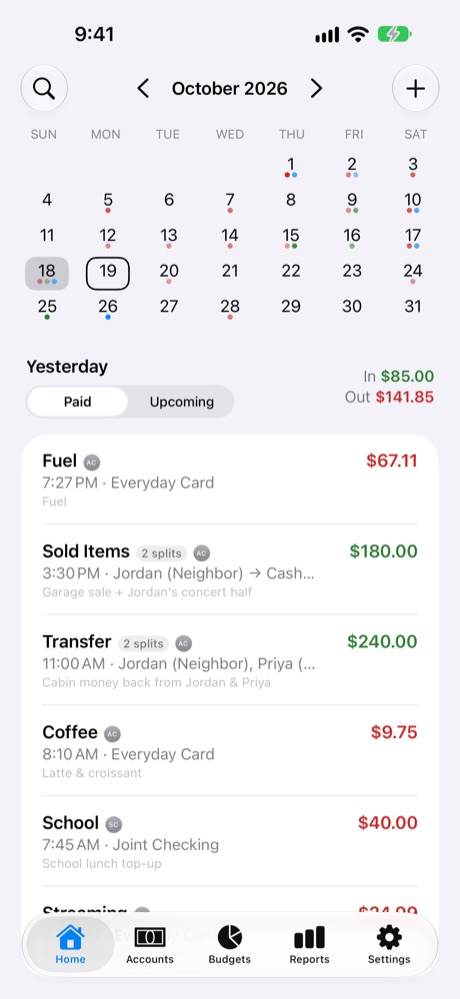
Tap a day to see its transactions, with money in and out totalled at the right.
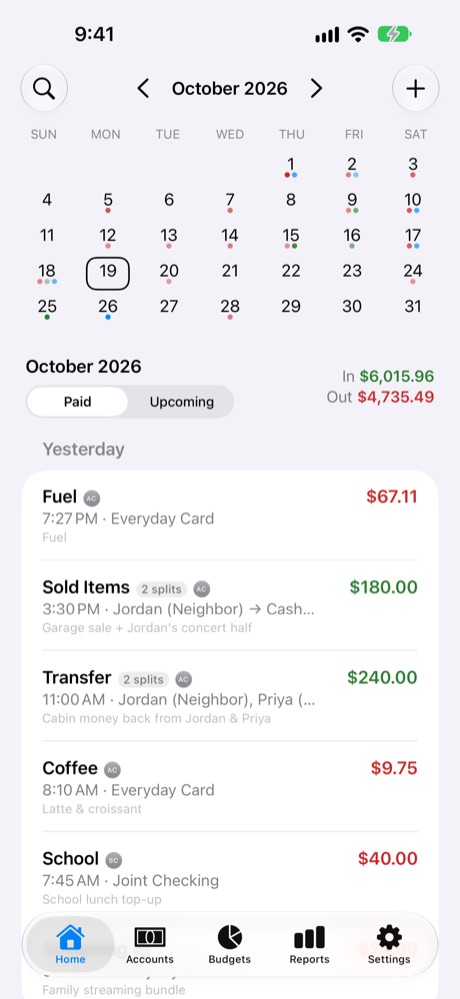
Tap the selected day again to see the whole month.
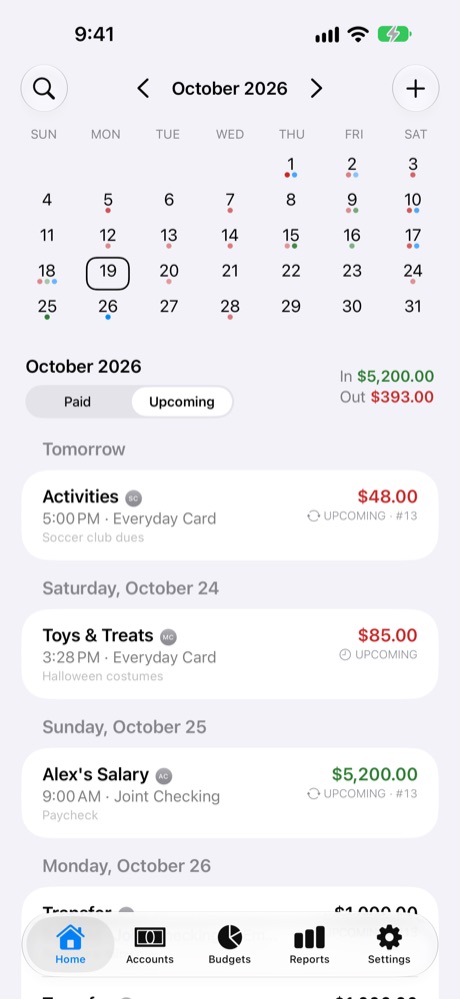
Paid shows what's happened, and Upcoming shows what's planned.
Use the arrows by the month to move through months, or tap the month's name to jump straight to any month and year.
Today is outlined. Past months keep all their history, and future months show what's planned.
Each row shows the category, time, account and note, plus a small initials badge for who added it.
A day: what was paid.
The month: tap the day again.
Upcoming for the month.
Search
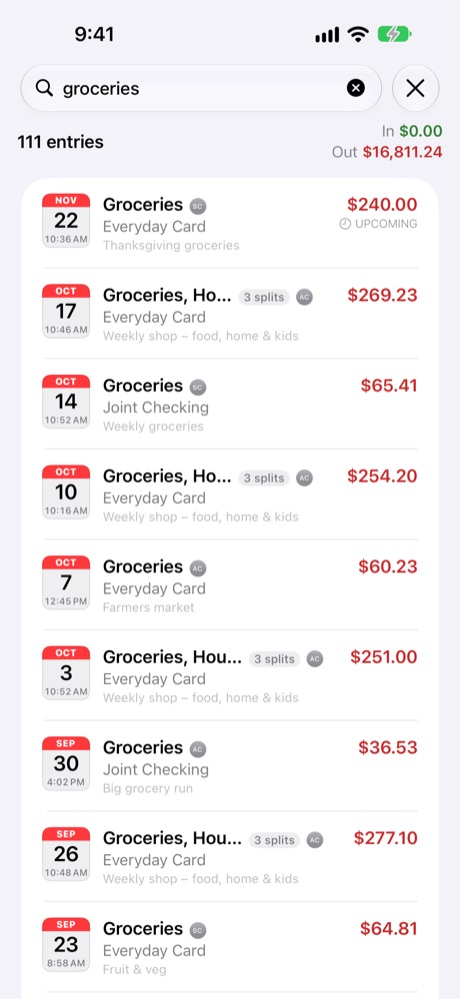
Tap the magnifying glass on Home to search every transaction by note, category, account or amount. The total in and out of the results shows at the top, which is handy for questions like "how much did we spend on groceries this year?".
Search with totals.
Reports and insights
The Reports tab shows six cards at a glance. Tap any card for the full report. Inside, tap a slice, bar or row to drill into categories and subcategories.
Report
What it tells you
Net Worth
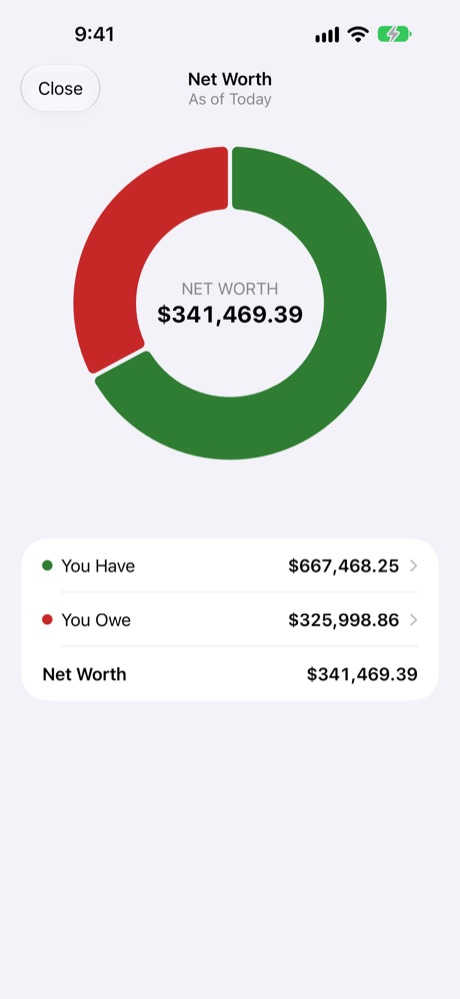
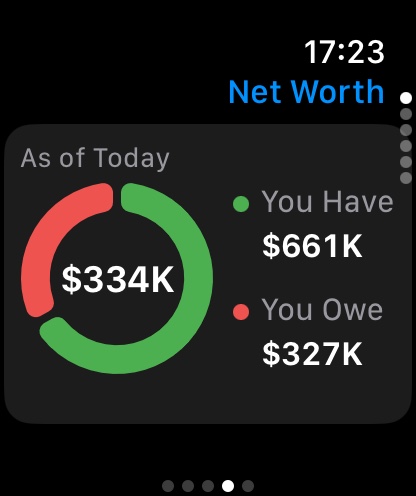
Everything you have (accounts, assets, money owed to you) against everything you owe (cards, loans), as of today.
Cash Flow
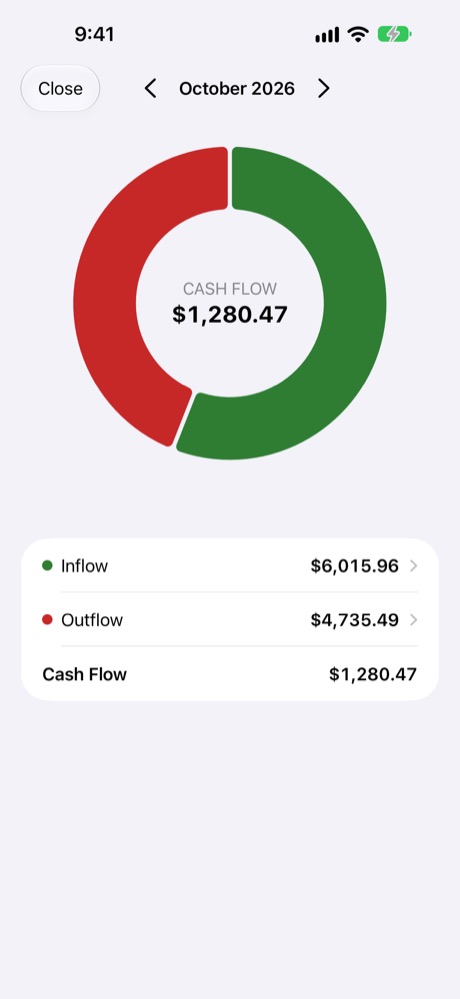
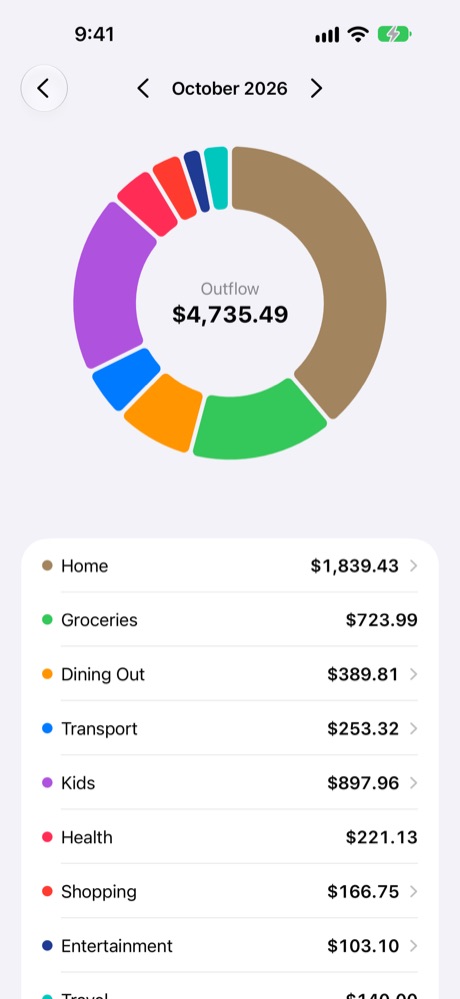
Money in against money out for the period. Tap Inflow or Outflow for a breakdown by category.
Expenses
Spending period by period, with a breakdown by category. Switch between Day, Week, Month, Quarter and Year.
Income
The same for money coming in.
Savings
What you kept (income minus expenses) and your savings rate.
Wealth
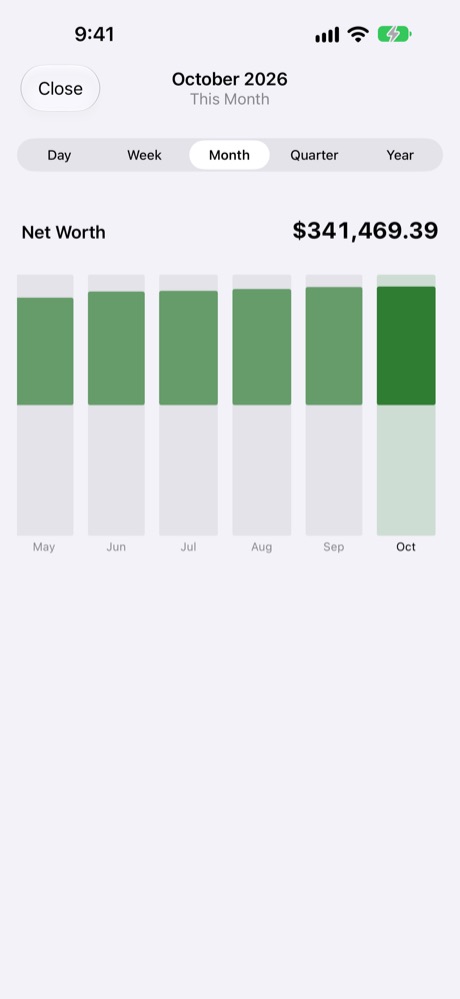
Your net worth at the end of each period, so you can see it grow.
Insights: six cards.
Net Worth.
Cash Flow.
Tap Outflow: by category.
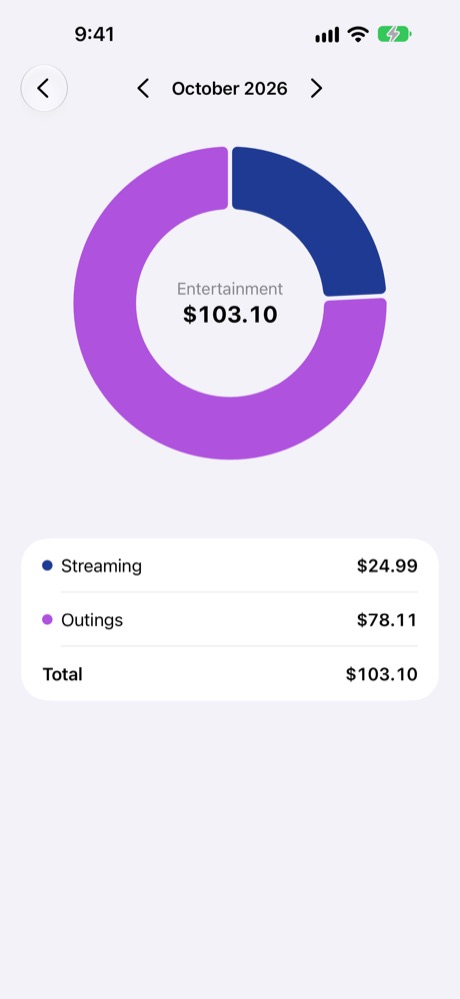
Tap a slice: subcategories.
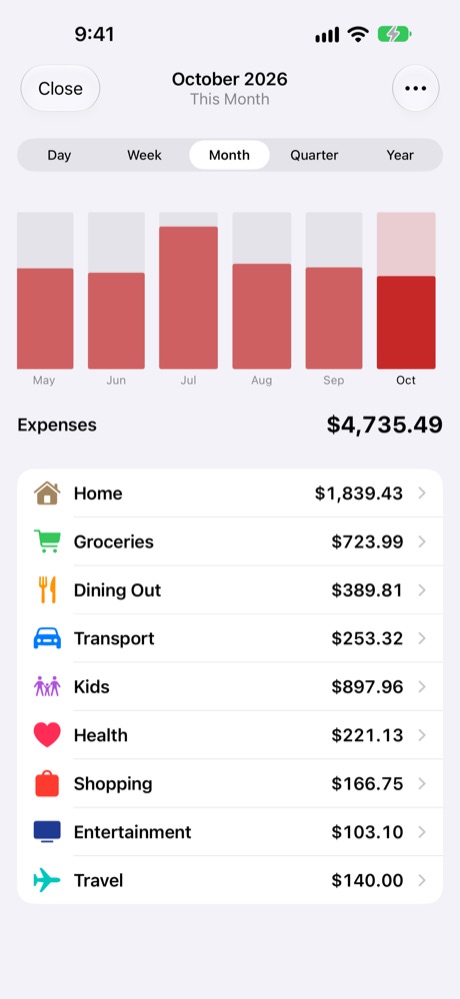
Expenses by month.
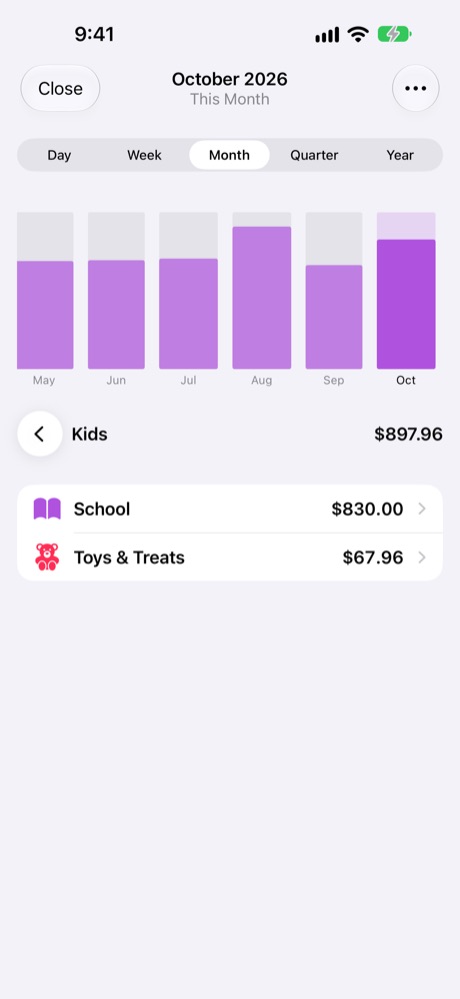
Drill into Kids.
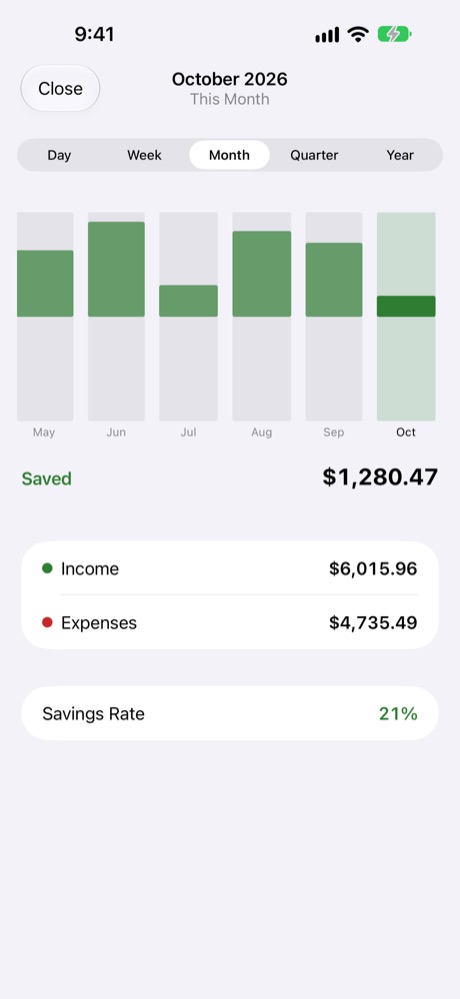
Savings and savings rate.
Wealth over time.
Inside a report
Day, Week, Month, Quarter, Year at the top of Expenses, Income, Savings and Wealth change how the bars are grouped. Scroll the chart sideways to go further back.
Tap a bar to see that period's breakdown. Tap a row to drill into a category's subcategories, and keep going down to the transactions.
In Expenses and Income, ••• → Show All Categories lists every category, including ones with nothing this period.
Cash Flow uses the arrows at the top to move between periods. Net Worth is always as of today. See Wealth for how it has changed.
Tapping a widget on your Home Screen opens its report straight away.
Reports follow your periodThe cards use the period set in Settings → Period. Inside a report, use the arrows to look at earlier periods, or the Day–Year switch to change the grouping.
Sharing with your family
Share a profile and everyone works in the same money book: same accounts, same budgets, same transactions, kept in sync through iCloud. You decide who gets in and whether they can edit.
Invite someone (the owner)
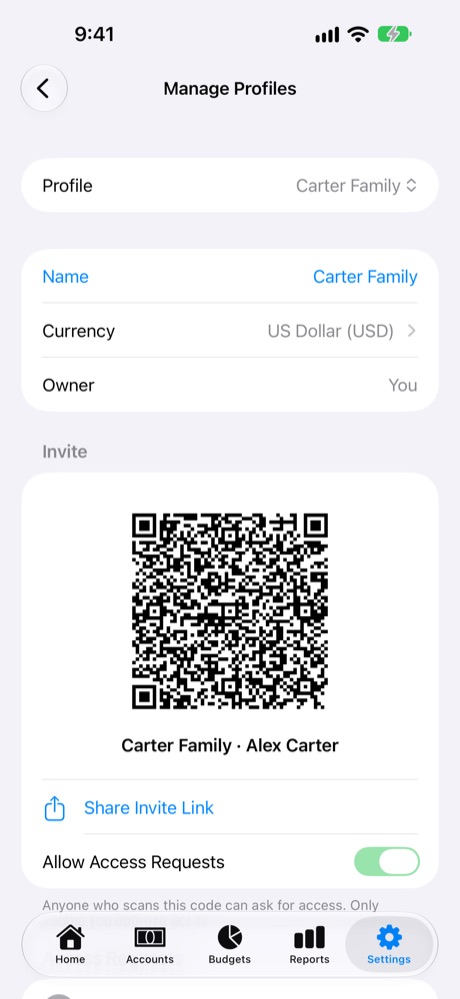
Go to Settings → Manage Profiles. Make sure the profile you want to share is selected at the top.
Under Invite, let them scan the QR code with MoneyBook, or tap Share Invite Link to send the link by Messages, Mail or WhatsApp.
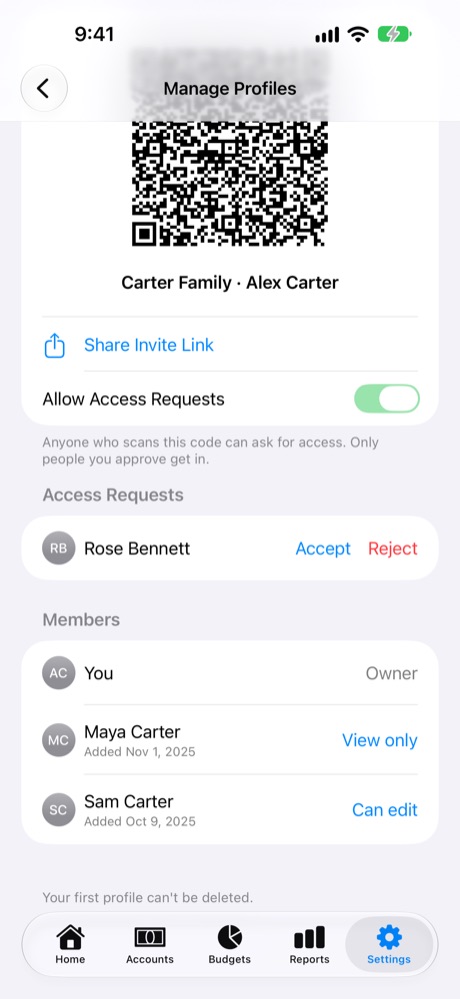
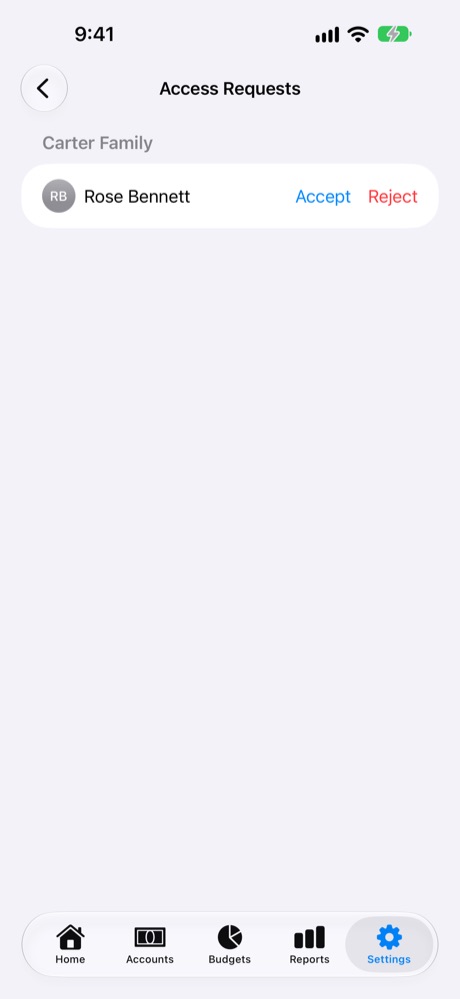
When they ask to join, they appear under Access Requests, there and in Settings → Access Requests.
Tap Accept and choose Can Edit or View Only, or tap Reject.
The profile's QR code and invite link.
Requests and members.
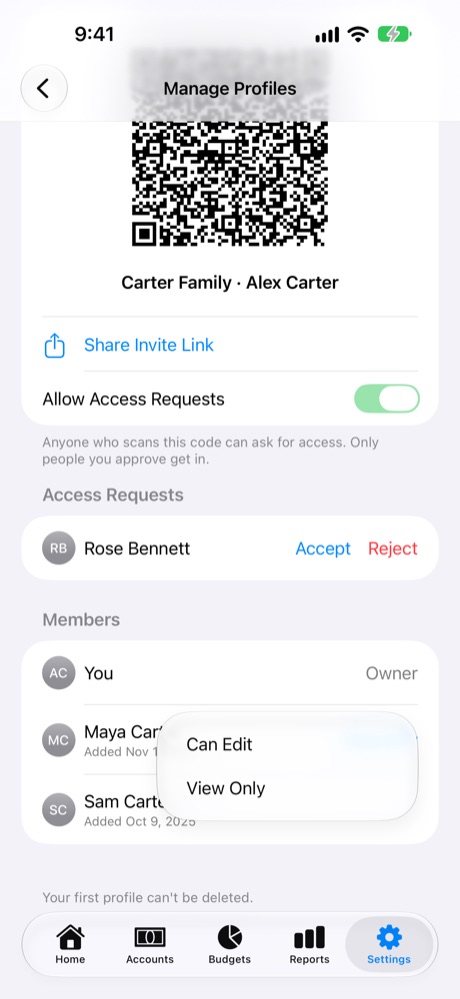
Change someone's access.
Access Requests in Settings.
Join a profile (family member)
Install MoneyBook and sign in to iCloud.
Tap the invite link you were sent. MoneyBook opens and asks you to confirm. Or go to Settings → Join a Profile and scan the owner's QR code, or tap Paste Invite Link.
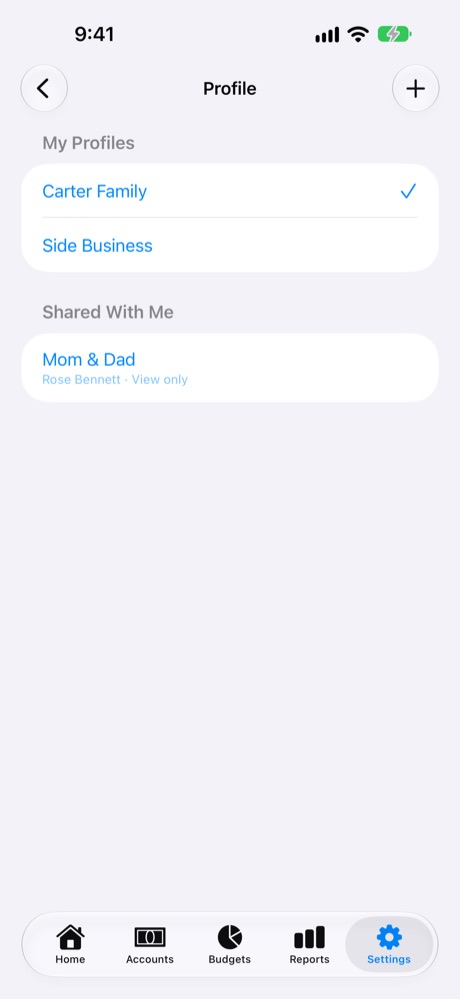
Wait for the owner to approve. The profile then appears in your profiles, under Shared With Me.
Join a Profile (the camera scans the code on a real device).
Added by shows who logged it.
Shared profiles under Shared With Me.
Access levels
Access
They can
Owner
Everything, plus invite people, change access, remove members, rename the profile and set its currency.
Can Edit
Add, change and delete transactions, accounts, categories and budgets.
View Only
See everything, but not change anything. Great for a teenager or an accountant.
Change access any time: in Manage Profiles, tap their access (Can edit or View only) and choose the other. Swipe left on a member to Remove them.
Stop new requests by turning off Allow Access Requests. People already in keep their access.
Block someone you don't want asking again: swipe left on their request and tap Block.
Changed your mind about joining? While your request is waiting, tap Cancel Request in Join a Profile or Manage Profiles.
Rename the profile from Manage Profiles. The new name appears for everyone.
See who did what: every transaction shows who added it. Turn on Settings → Use Names from Contacts to show the names and photos you saved for them.
Leave a profile someone shared with you from Manage Profiles. Deleting a profile you own deletes it for everyone.
Who pays?Each person needs MoneyBook Plus to add or change things after their free month, or a family member's purchase through Apple's Family Sharing. Without it, they can still see everything. See MoneyBook Plus.
More profiles
Keep separate books for separate things: the household, a side business, or your parents' finances that you help with. Each profile has its own accounts, categories, budgets, members and currency.
Go to Settings → Profile.
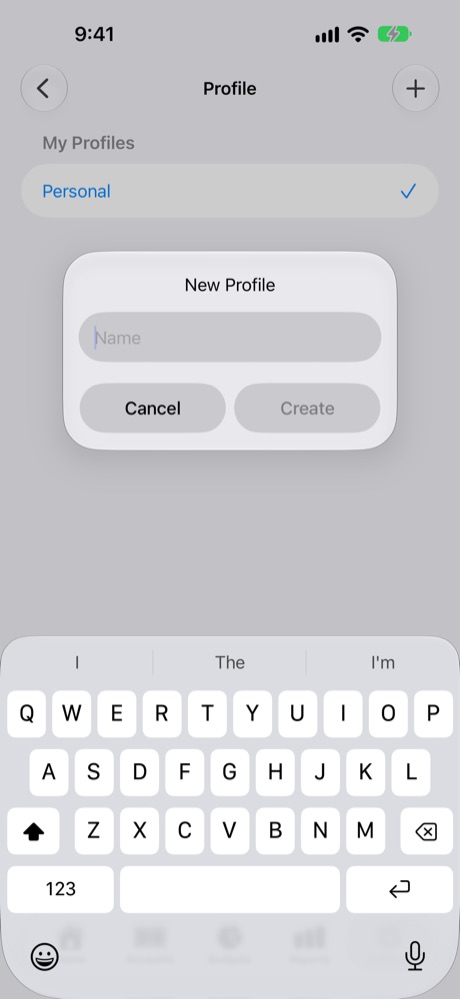
Tap +, type a name and tap Create.
Tap a profile to switch to it. Home, Accounts, Budgets and Reports all show the selected profile, and so do widgets and Siri.
My Profiles and Shared With Me.
New Profile.
Your first profile can't be deleted. Others can be, from Manage Profiles.
Siri and Shortcuts
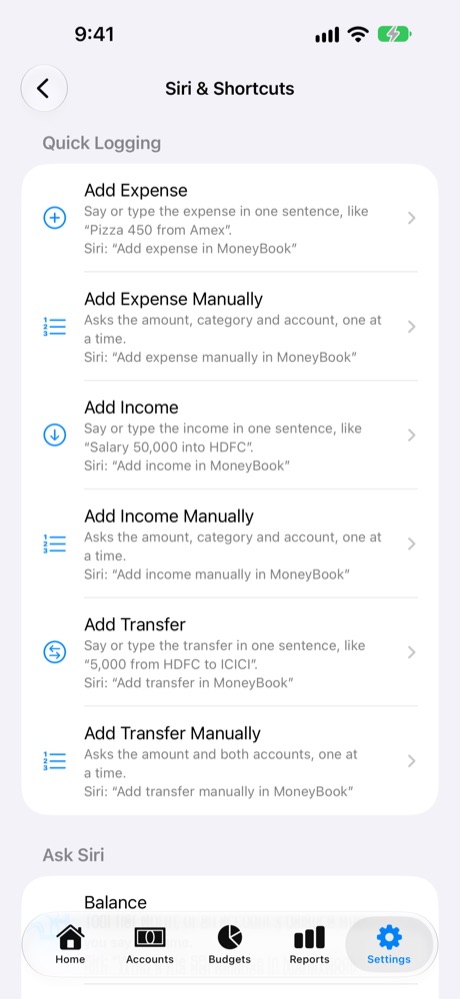
Add expenses, income and transfers without opening the app, by saying them in your own words or step by step. Ask Siri for a balance, what's left of a budget or what you've spent. And build your own shortcuts and automations.
Everything in one place
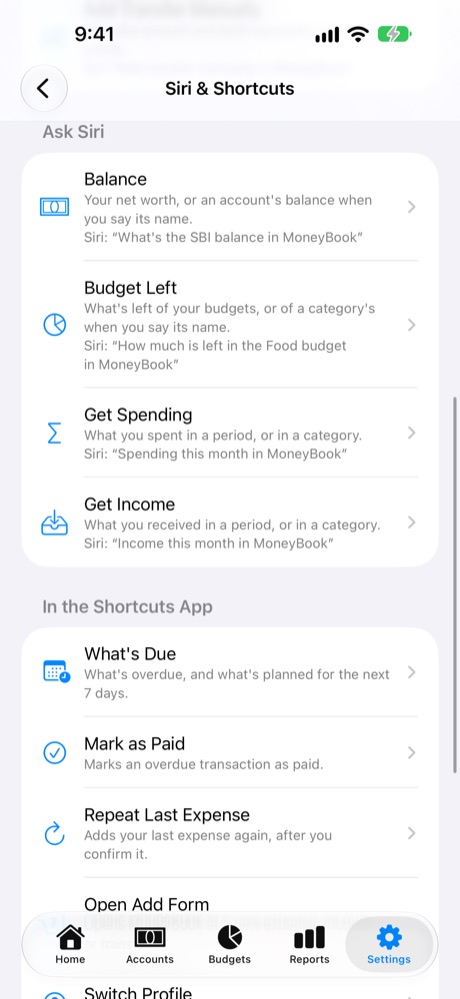
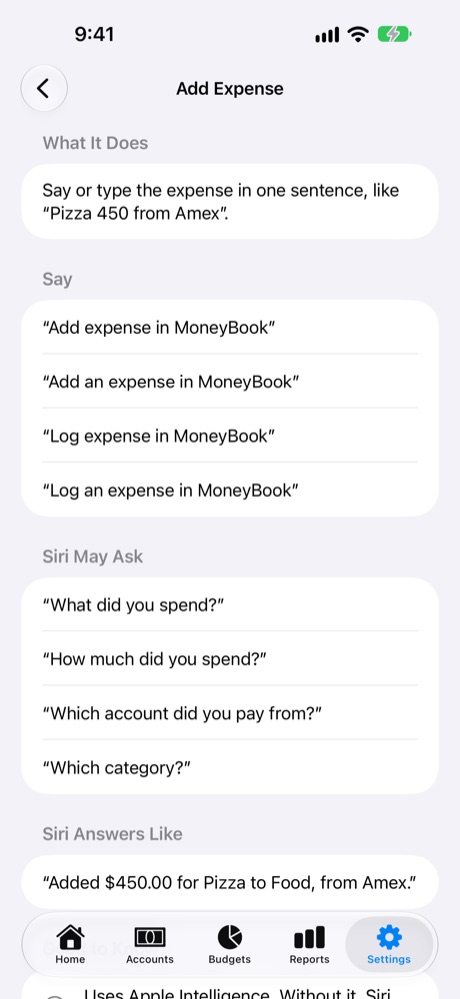
Go to Settings → Siri & Shortcuts. It lists every MoneyBook shortcut with the phrase that starts it. Tap one for its full guide: every phrase Siri understands, the questions Siri may ask, how Siri answers, and good-to-know notes.
Siri & Shortcuts in Settings.
Quick Logging: six ways to add.
Ask Siri and In the Shortcuts App.
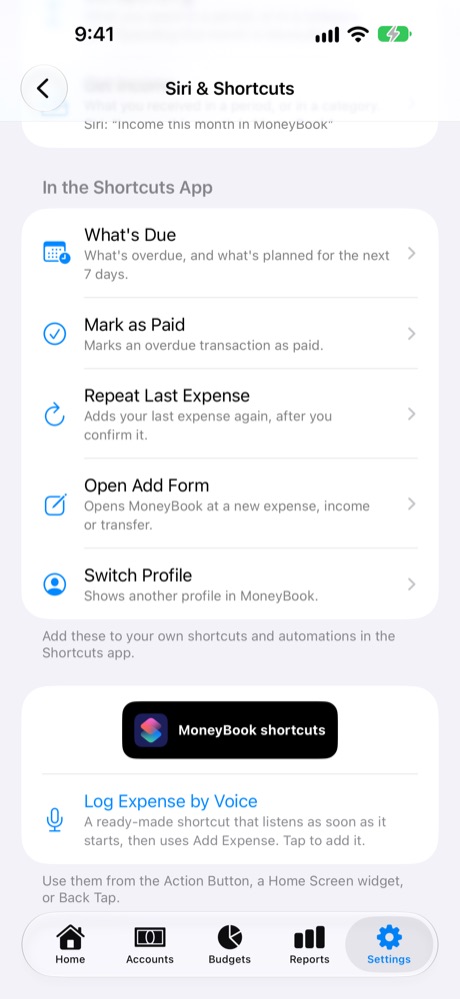
The MoneyBook shortcuts button and Log Expense by Voice.
Each shortcut has its own guide.
What Siri may ask and how it answers.
Add by voice: Quick Logging
Say to Siri
Then
Example
"Add expense in MoneyBook"
Say or type the expense in one sentence.
"Pizza 24 from Visa Card"
"Add income in MoneyBook"
Say or type the income in one sentence.
"Salary 3,200 into Joint Checking"
"Add transfer in MoneyBook"
Say the amount and both accounts.
"500 from Joint Checking to Emergency Fund"
"Add expense manually in MoneyBook"
Siri asks the amount, then the category and account from lists, then an optional comment.
Step by step
"Add income manually in MoneyBook"
The same, for income.
Step by step
"Add transfer manually in MoneyBook"
Siri asks the amount, the account it left and the account it went into.
Step by step
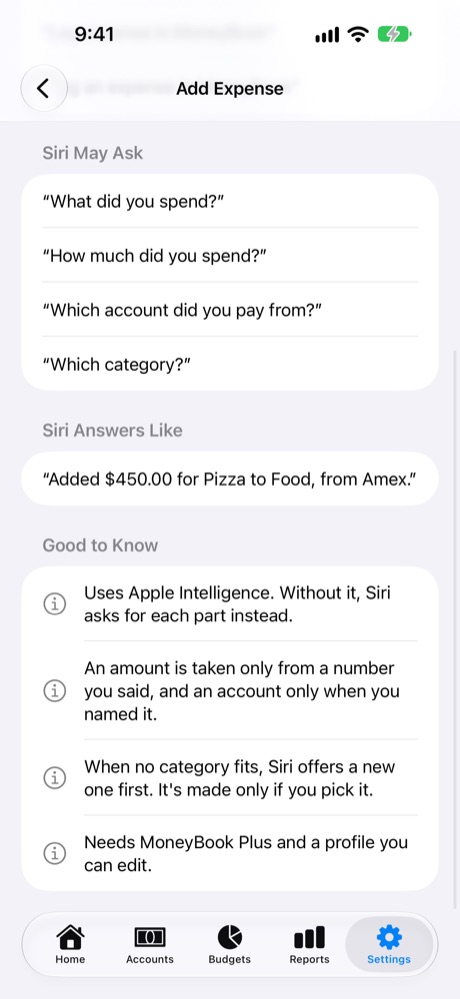
Add expense in MoneyBook
What did you spend?
Pizza 24 from Visa Card
Added $24.00 for Pizza to Restaurants, from Visa Card.
Siri also understands variations like "Log expense in MoneyBook", "Add an expense in MoneyBook", "Log income in MoneyBook" and "Add a transfer in MoneyBook".
From a sentence, an amount is only taken from a number you said, and an account only when you named it. Anything missing, Siri asks: "Which account did you pay from?", "Which category?".
When no category fits an expense or income, Siri offers a new one first. It's only made if you pick it.
A transfer's two accounts can't be the same. With only two accounts, the other one is used. Transfers are added without a category.
With only one account, the manual shortcuts don't ask for it.
Adding needs MoneyBook Plus (or your free month) and a profile you can edit.
Ask Siri
These answer from your own data, on your device. They work without MoneyBook Plus, and in profiles you can only view.
Ask
Say
Siri answers like
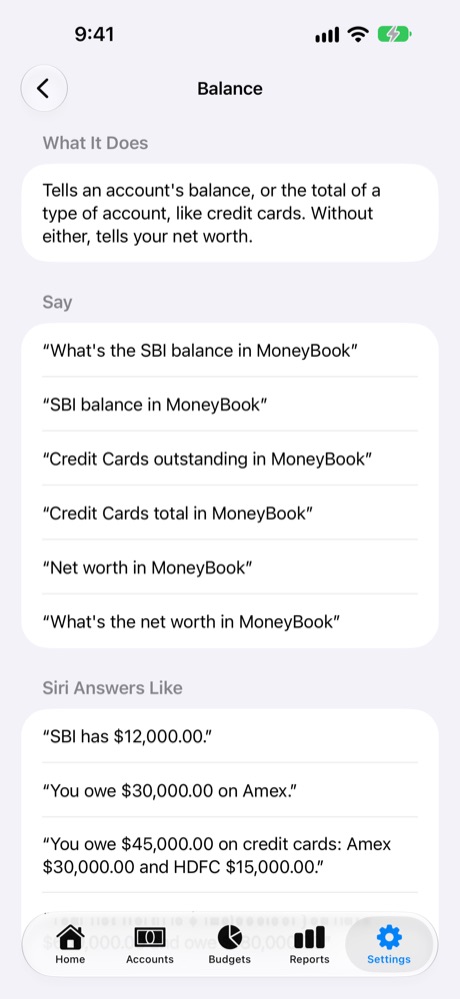
Balance
"What's the Joint Checking balance in MoneyBook", "Credit cards outstanding in MoneyBook", "Assets total in MoneyBook", "Net worth in MoneyBook"
"Joint Checking has $17,930.33." "Your net worth is $341,469.39: you have $667,468.25 and owe $325,998.86."
Budget Left
"How much is left in the Groceries budget in MoneyBook", "Budget left in MoneyBook"
"$326.01 left in Groceries this month, of $1,050.00." Or "Health is $41.13 over budget this month."
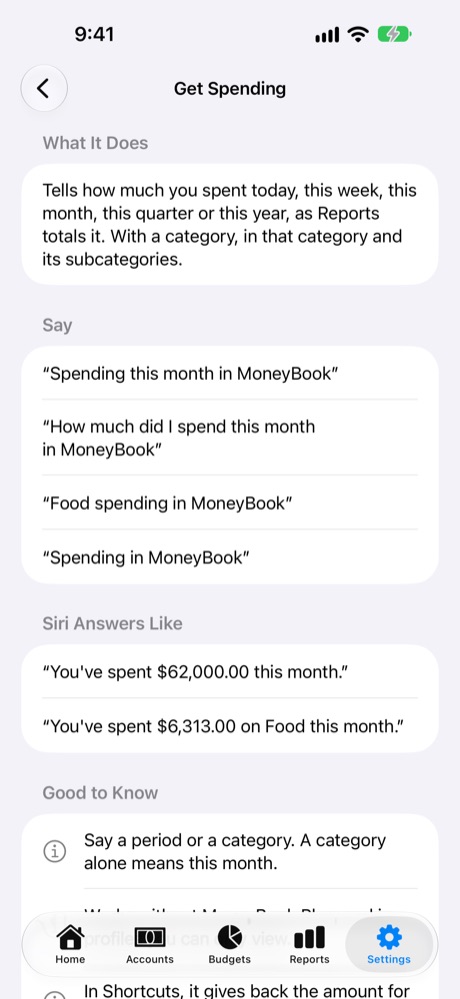
Get Spending
"Spending this month in MoneyBook", "How much did I spend this week in MoneyBook", "Groceries spending in MoneyBook"
"You've spent $4,735.49 this month."
Get Income
"Income this month in MoneyBook", "How much did I receive this year in MoneyBook", "Salary income in MoneyBook"
"You've received $6,015.96 this month."
Balance works for one account, a type of account (payment accounts, credit cards, assets, liabilities, people) or, with neither, your net worth. Totals match the Accounts tab, hidden accounts included.
Budget Left uses the budget period chosen in Settings. A group counts its subcategories.
Spending and Income take today, this week, this month, this quarter or this year, as Reports totals them. Name a category alone and it means this month.
In the Shortcuts app, all four give back the amount, so your own shortcut can use it next: show it, compare it, or send it.
Balance: every phrase.
Get Spending.
In the Shortcuts app
These have no Siri phrase of their own. Add them to a shortcut in the Shortcuts app, then run it from the Action Button, Back Tap or Control Center, say its name to Siri, or use it in an automation.
Action
What it does
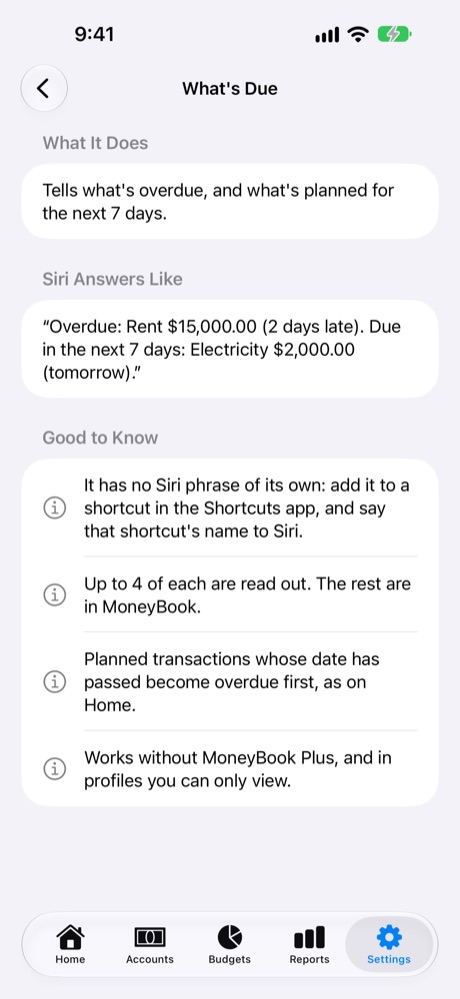
What's Due
Tells what's overdue and what's planned for the next 7 days. Up to 4 of each are read out. Works without MoneyBook Plus.
Mark as Paid
Marks an overdue transaction as paid. Siri asks which one, or, with just one overdue, asks you to confirm it.
Repeat Last Expense
Adds your last expense again, dated now, after you confirm. Everything else is copied. The copy doesn't repeat.
Open Add Form
Opens MoneyBook at a new expense, income or transfer, ready to fill in. Great on the Action Button or in Control Center. On iPhone, iPad and Mac.
Switch Profile
Shows another profile in MoneyBook. Reminders, widgets and amounts follow it.
What's Due.
Automation ideas
Every Sunday evening: get this week's spending and show it as a notification.
When you arrive home: switch to your family profile.
Every morning: run What's Due so you never miss a bill.
In the Shortcuts app, open Automation, tap +, choose the trigger (Time of Day, Arrive…), then add the MoneyBook action.
How Siri reads your sentences
Adding by sentence uses Apple Intelligence, which needs to be turned on in your device's Settings:
Your system
How it's read
iOS, iPadOS, macOS and watchOS 27
With Apple's Private Cloud Compute. Needs an internet connection.
iOS, iPadOS and macOS 26
On your device, with Apple's on-device model.
Apple Watch with watchOS 26
Not read: Siri asks for each part instead.
If Apple Intelligence isn't available, Siri asks for each part. The "manually" shortcuts and every Ask Siri question work without Apple Intelligence.
The ready-made voice shortcut
Shortcut
What happens
Best for
Log Expense by Voice
Starts listening the moment it runs. Say the whole expense in one breath, like "Coffee 4.50 cash", and it's added.
The Action Button, Back Tap: the fastest way to log
Add Expense (or Income, Transfer)
Asks "What did you spend?", then reads your answer. You can say it or type it.
Siri, or typing on the go
Add Expense Manually (or Income, Transfer)
Asks each part, choosing from lists.
When you'd rather pick from lists, or without Apple Intelligence
All MoneyBook shortcuts are built in. There's nothing to install, and they're in the Shortcuts app under MoneyBook (tap MoneyBook shortcuts in Siri & Shortcuts to jump there). Log Expense by Voice is a ready-made shortcut you add once.
Set up "Log Expense by Voice"
In MoneyBook, go to Settings → Siri & Shortcuts and tap Log Expense by Voice.
The Shortcuts app opens with the shortcut. Tap Add Shortcut.
Run it once from the Shortcuts app. If it asks for permission to use MoneyBook or speech recognition, allow it.
Put it on the Action Button
On an iPhone with an Action Button (iPhone 15 Pro and later), one press can start logging:
Open the Settings app on your iPhone and tap Action Button.
Swipe to Shortcut, tap Choose a Shortcut… and pick Log Expense by Voice.
Now press and hold the Action Button anywhere, even on the Lock Screen, and say the expense in your own words.
Press and hold the Action Button…
Groceries 84.25 on the Everyday Card
Added $84.25 to Groceries, from Everyday Card.
Things you can say:
"Pizza 24 from Visa Card": amount, a hint of the category, and the account.
"Paid 60 for fuel with the Everyday Card"
"Coffee and bagel 8.50 cash"
"Spent 35 on Maya's swimming lesson": if you don't name an account, Siri asks which one.
Mention an account by its name, or part of it. If anything is missing or unclear, Siri asks a quick follow-up question, like "Which account did you pay from?", and shows a list to pick from.
Prefer to choose from lists?Put Add Expense Manually on the Action Button instead. In the Action Button settings, choose Shortcut, then find MoneyBook in the list of apps and pick Add Expense Manually. Each press walks you through amount, category and account.
Pick your style first
Every trigger below (Action Button, Lock Screen, Control Center, Back Tap) runs whichever shortcut you choose for it:
You want to…
Choose this shortcut
Speak it in one go
Log Expense by Voice: it listens straight away. Say "Lunch 12.50 from Visa Card".
Say or type a sentence
Add Expense: asks "What did you spend?", then you speak or type.
Go step by step
Add Expense Manually: amount, then category and account from lists, then an optional comment.
Use two triggersMany people put Log Expense by Voice on the Action Button for quick natural-language logging, and Add Expense Manually on Back Tap or the Lock Screen for when they'd rather tap through the lists.
Make all three available everywhere
Log Expense by Voice is already in your Shortcuts library once you've added it. To use Add Expense or Add Expense Manually with the Lock Screen, Control Center or Back Tap, add them to your library once:
Open the Shortcuts app and tap + to make a new shortcut.
Search for MoneyBook and tap Add Expense (or Add Expense Manually).
Tap the name at the top, call it something like "Log Expense" or "Log Step by Step", and tap Done.
From the Lock Screen
Replace one of the two buttons at the bottom of the Lock Screen (the torch or camera) with a MoneyBook shortcut:
On the Lock Screen, touch and hold until Customize appears, then tap it and choose Lock Screen.
Tap − on the torch or camera button to remove it, then tap the empty + spot.
Choose the Shortcut control, then pick Log Expense by Voice, or one of the MoneyBook shortcuts you made above.
Tap Done. Now press and hold that button on the Lock Screen to log an expense.
From Control Center
Swipe down from the top-right corner to open Control Center, and tap + at the top left.
Tap Add a Control, choose Shortcut, and pick the shortcut you want.
Open Control Center from anywhere, including the Lock Screen, and tap it.
With Back Tap
Double- or triple-tap the back of your iPhone to start logging. It works on iPhone 8 and later, with or without a case.
Open the Settings app → Accessibility → Touch → Back Tap.
Choose Double Tap or Triple Tap.
Scroll to Shortcuts and pick Log Expense by Voice, or one of the MoneyBook shortcuts you made above.
Tap the back of your iPhone twice (or three times) while it's unlocked, and log your expense.
Set bothBack Tap has two slots: put Log Expense by Voice on Double Tap and Add Expense Manually on Triple Tap, so both styles are a tap away.
Build your own one-tap shortcuts
The MoneyBook actions in the Shortcuts app take values, so you can build shortcuts for things you buy often. Anything you fill in isn't asked again.
In Shortcuts, tap +, search for MoneyBook and add Add Expense Manually.
Tap the arrow on the action to show its options and fill in Amount (4.50), Category (Coffee) and Account (Cash Wallet).
Name it "Coffee", and put it on the Home Screen, Lock Screen or Back Tap. One tap logs your coffee, and only the comment is asked.
More places
Home Screen: in the Shortcuts app, touch and hold a shortcut → Share → Add to Home Screen. Or add a Shortcuts widget showing your MoneyBook shortcuts.
Siri: say "Add expense in MoneyBook" or "Add expense manually in MoneyBook". No setup needed.
PrivacyA sentence you say is read with your account and category names: on your device on version 26, or by Apple's Private Cloud Compute on version 27, which doesn't keep it. We never receive it. Your last 20 Siri entries stay on your device for 7 days to help fix misheard ones, and you can clear them in Settings → Support. See the privacy policy.
Widgets
Five widgets put your numbers on your Home Screen, Lock Screen, Mac desktop and watch face: Net Worth, Cash Flow, Expenses & Income, Savings and Wealth.
Touch and hold an empty area of the Home Screen, tap Edit → Add Widget, and search for MoneyBook.
Choose a widget and a size (small, medium or large), then tap Add Widget.
Touch and hold the widget → Edit Widget to choose what it shows: for example Net Worth for one kind of account, Cash Flow for one category, or Expenses by week instead of month.
What each widget can show
Widget
Options (Edit Widget)
Net Worth
Show: Net Worth, You Have or You Owe. Account Type: all accounts, or only payment accounts, credit cards, assets, liabilities or people.
Cash Flow
Show: Cash Flow, Inflow or Outflow. Category: all, or one. Period: today, this week, this month, this quarter or this year.
Expenses & Income
Type: expenses or income. Category: all, or one. Period: bars by day, week, month, quarter or year.
Savings
Period: bars by day, week, month, quarter or year.
Wealth
Period: net worth at the end of each day, week, month, quarter or year.
Each comes in small, medium and large on the Home Screen and Mac desktop, plus circular, rectangular and inline sizes on the Lock Screen. Tapping a widget opens its report in MoneyBook.
On Apple Watch, add MoneyBook to a watch face from the face's Edit screen and choose from ready-made versions of each widget. On a Mac, add widgets from the desktop's Edit Widgets. Widgets show the profile selected in MoneyBook.
iPad, Mac and Apple Watch
One purchase covers every device, and they all stay in sync through iCloud.
iPad
A sidebar replaces the tabs, and reports show the chart and its breakdown side by side.
Mac
A real Mac app with a sidebar, the menu bar and keyboard shortcuts:
Add
New Expense ⌘ N New Income ⇧ ⌘ N New Transfer ⌥ ⌘ N New Split… in the File menu
Move around
Home, Accounts, Budgets, Reports, Settings ⌘ 1 to ⌘ 5
Find
Search Transactions ⌘ F
Apple Watch
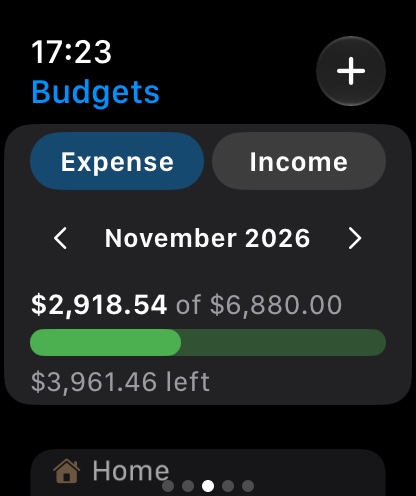
The watch app works on its own, straight from iCloud, so your iPhone can stay in your pocket. Swipe between its pages: Today, Accounts, Budgets, Reports and Settings. Tap + to add.
Today: money in and out today, overdue bills (with Mark as Paid) and what's been paid.
Add and edit expenses, income, transfers and splits, with a calculator keypad, repeats, Automatic, Remind and Exclude from Budget.
Accounts and Budgets: balances and progress, plus adding, editing, hiding, moving and deleting accounts and categories, and setting budgets with rollover.
Reports: all six insight cards.
Settings: switch, create and manage profiles, approve or block access requests, choose the budget period, and turn reminders on or off for the watch.
Join a profile by opening an invite link on the watch.
Widgets on your watch face.
Accessibility, languages and appearance
VoiceOver reads every screen, including charts, with Audio Graphs for the report charts.
Dynamic Type: text follows your iPhone's text size.
Reduce Motion and Differentiate Without Color are respected.
Dark Mode: MoneyBook follows your device's appearance.
49 languages: MoneyBook uses your device's language. To change it for MoneyBook only, open the Settings app → Apps → MoneyBook → Language.
Dates and numbers follow your region, and amounts use the profile's currency.
Every setting, explained
Setting
What it does
MoneyBook Plus
Subscribe, or manage your subscription once you have one.
Profile
Switch profiles, or create a new one.
Manage Profiles
Rename, set the currency, invite people with the QR code or link, approve requests, change access, remove members, leave or delete a profile.
Access Requests
Every waiting request across your profiles, with Accept, Reject and Block.
Join a Profile
Scan an owner's QR code or paste an invite link.
Use Names from Contacts
Shows the names and photos you saved for people in your profiles. Optional, and nothing from Contacts is uploaded.
Period
Daily, weekly, monthly, quarterly or yearly: how Budgets and Reports group money.
Remind on This Device
Turns reminders on or off on this device only.
Remind
When reminders arrive: on the day, or 1, 2, 3 or 7 days before.
Siri & Shortcuts
Every Siri command and Shortcuts action, each with its full guide, the MoneyBook shortcuts button, and the Log Expense by Voice shortcut.
Getting Started
Opens this guide.
Email Support / Message Us
Contact us. Email Support can include your recent Siri entries if you choose.
Website
Opens wasiqapps.com/money.
Clear Siri History
Shown when you've added by sentence with Siri: deletes the recent Siri entries kept on this device.
Privacy Policy
How MoneyBook handles your data.
Remove Data…
Only shown when this device has data from another iCloud account: removes it so this account's data can sync.
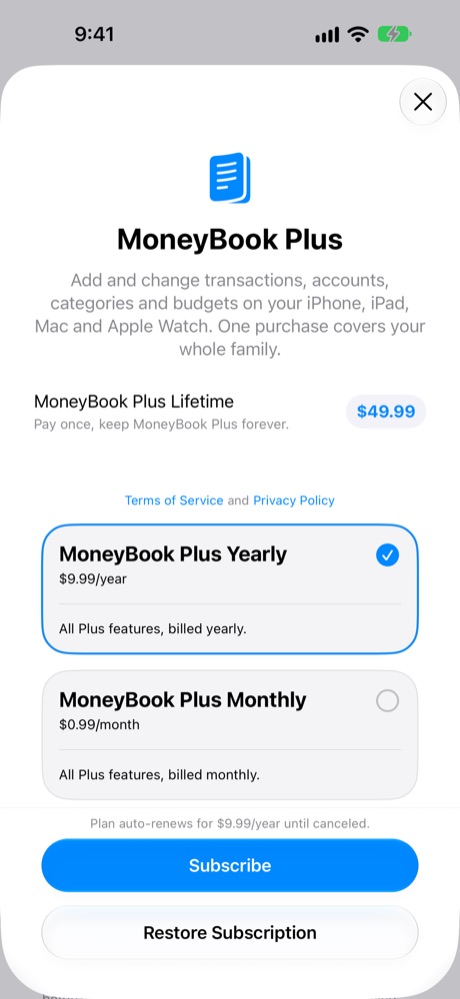
MoneyBook Plus
Everything is free for your first 30 days, starting when you first download MoneyBook. No sign-up or payment details needed.
After 30 days, you can still open MoneyBook and see everything. Adding and changing things needs MoneyBook Plus.
Choose monthly ($0.99), yearly ($9.99) or a one-time lifetime ($49.99) purchase. Prices are in US dollars and vary by country.
Family Sharing is supported: one purchase can cover everyone in your Apple family group.
Subscribe from Settings → MoneyBook Plus. Once subscribed, Manage Subscription lets you change or cancel. Purchases come back on any device with your Apple Account; on a new device, tap Restore Subscription on the plans screen if needed.
Planned automatic transactions keep posting even without a subscription.
MoneyBook Plus plans.
Help and troubleshooting
Stuck? Settings → Support has Email Support and Message Us. Email Support attaches technical details that help us fix problems, never your amounts, notes or names. You can also email hello@wasiqapps.com or visit MoneyBook Support.
Check that both devices are signed in to iCloud with the same Apple Account and are online, and look at the top of MoneyBook's Settings for a message about iCloud. Changes made offline sync once you're back online.
My family member can't join
They need MoneyBook and iCloud. Make sure Allow Access Requests is on in Manage Profiles. After they scan the code or open the link, you approve them under Access Requests. The profile appears for them once you do.
An account balance doesn't match my bank
Use Balance Adjustment from the account's ••• menu and enter the real balance. MoneyBook records the difference without changing your past transactions.
A category says "over" even though I haven't spent much this month
Rollover is probably on, and overspending from earlier periods carried over. Edit this period's budget and turn on Reset rollover balance to start fresh.
A bill disappeared from Upcoming
If it's past its date and not automatic, it's in the Overdue section at the top of Home (on today's view). Mark it paid or move it with Later.
I can see everything but can't add anything
Either your free month has ended (subscribe in Settings → MoneyBook Plus), or you have View Only access to a shared profile (ask the owner for Can Edit).
I deleted something by mistake
Deleting can't be undone, and a delete reaches every device and everyone in the profile. Add the transaction again, or use Balance Adjustment to put an account right.
MoneyBook says "Update MoneyBook"
That version can no longer sync with iCloud. Your data is safe on the device. Tap Open App Store, update, and everything syncs again. On Apple Watch, update from the App Store on the watch or the Watch app on your iPhone.
Siri asks for every part instead of reading my sentence
Reading a sentence needs Apple Intelligence turned on (Settings → Apple Intelligence & Siri). On version 27 it also needs an internet connection. On an Apple Watch with watchOS 26, sentences aren't read, so Siri always asks. The "manually" shortcuts never need Apple Intelligence.
I can't drag accounts or categories
Dragging needs iOS, iPadOS or macOS 27. On version 26, use Move Up, Move Down and Move from the ••• menu instead.
Does MoneyBook connect to my bank?
No. You add transactions yourself, by hand, with Siri or from your watch. MoneyBook never asks for your bank login.